How Much RAM Do You Really Need in a Laptop?
How Much Laptop RAM Do You Need? If you’ve ever shopped for a laptop, you’ve probably hit a moment of hesitation on the RAM […]
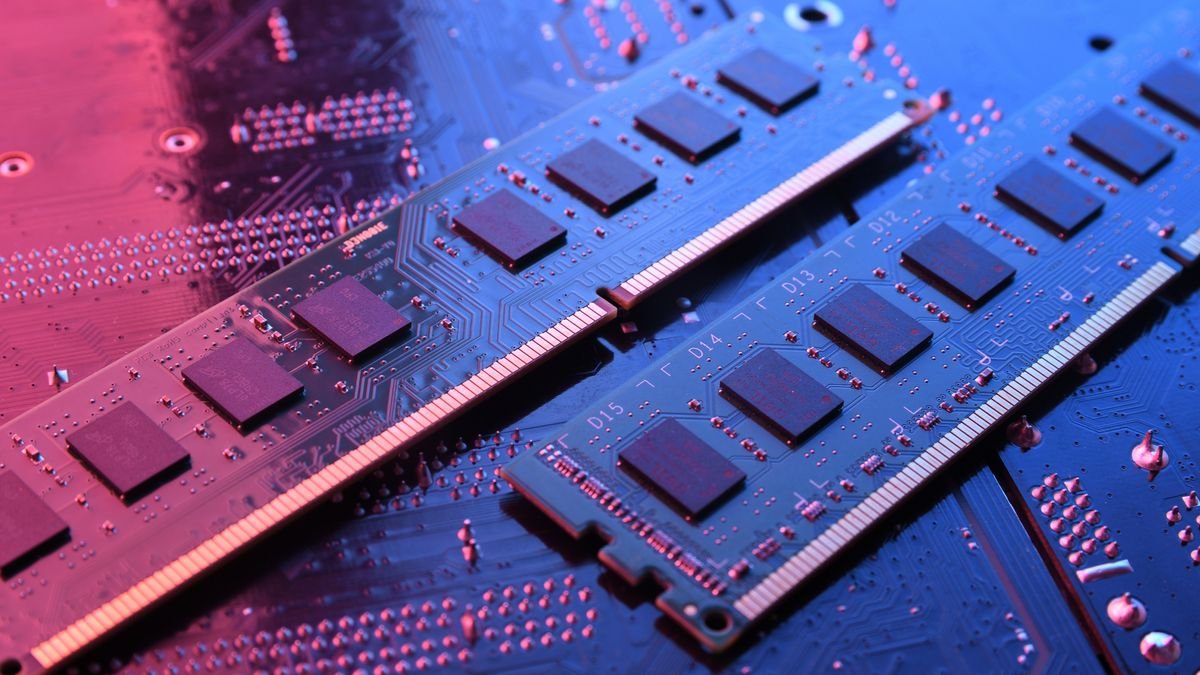
How Much Laptop RAM Do You Need?
If you’ve ever shopped for a laptop, you’ve probably hit a moment of hesitation on the RAM dropdown: 8GB, 16GB, or 32GB? The price difference between these options can be significant, and unless you already understand what RAM does, it’s genuinely hard to know which choice actually matches how you’ll use the machine day to day.
Short answer: For most people doing everyday tasks — web browsing, office work, video calls, and light multitasking — 16GB of RAM is the current practical standard. 8GB can still work for very basic use but leaves little room to grow. 32GB or more is aimed at heavier workloads like video editing, 3D work, software development, or running multiple demanding applications at once.
The rest of this guide explains why that’s the case, what RAM actually does under the hood, how operating systems manage it, how much different types of users tend to need, and how to make a confident decision the next time you’re staring at that configuration dropdown.
What RAM Actually Does
RAM (Random Access Memory) is short-term, high-speed memory that your laptop uses to hold data it’s actively working with — open apps, browser tabs, background processes, and anything the operating system needs quick access to right now.
This is different from storage (an SSD or hard drive), which holds your files, apps, and operating system long-term, even when the laptop is off. RAM is temporary and clears when the laptop shuts down or restarts.
A useful analogy: storage is like a filing cabinet where documents live permanently, while RAM is like the desk space you clear off to actually work on those documents. A bigger desk doesn’t make you type faster, but it does let you keep more documents open at once without having to put some away first to make room for new ones.
This distinction matters because RAM and processor speed solve different problems. A fast processor (CPU) determines how quickly a single task gets done — how fast a file exports, how quickly a webpage renders, how responsive a single application feels in isolation. RAM determines how many things the laptop can juggle at the same time without slowing everything else down.
It helps to think of it this way: the CPU is the worker doing the actual thinking and calculating, while RAM is the workspace that worker has to spread out reference material. A brilliant worker with a tiny desk still has to keep putting things away and pulling them back out, which costs time. A large desk doesn’t make the worker smarter, but it removes a lot of that back-and-forth shuffling.
How Operating Systems Manage RAM
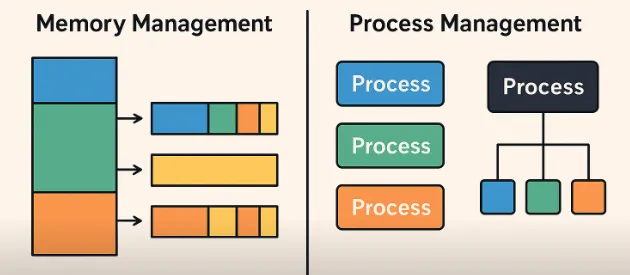
It’s worth understanding that your operating system is constantly making decisions about RAM in the background, and this affects how “full” your RAM appears at any given moment.
Modern operating systems — Windows, macOS, ChromeOS, and Linux distributions alike — are designed to use as much available RAM as seems useful, not to leave it empty. This is intentional. Unused RAM provides no benefit sitting idle, so operating systems commonly keep recently used data cached in memory in case you need it again soon, even after you’ve closed the app that used it. This is why RAM usage often looks high even when you feel like you aren’t doing much — the system is using available capacity productively, not wastefully.
This also means that looking at a “percentage of RAM used” figure in isolation can be misleading. What matters more is whether the system feels responsive, whether switching between apps causes noticeable delays, and whether background reloading (like a browser tab restarting itself after you switch back to it) happens frequently.
Virtual Memory and Paging
When the amount of active work exceeds available RAM, the operating system falls back on a mechanism generally called virtual memory or paging. In simple terms, the system temporarily uses space on the storage drive to hold data that would normally stay in RAM, freeing up room for whatever needs attention right now.
Because storage — even a fast SSD — is significantly slower than RAM for this purpose, this is the point where a laptop starts to feel sluggish. Browser tabs reload after switching back to them, apps take longer to respond, copy-paste actions lag, and overall responsiveness drops noticeably during multitasking.
This is generally the main real-world symptom of “not enough RAM.” It’s rarely a dramatic crash or an error message — it’s a gradual sense that the laptop is straining, becoming less responsive the more you ask of it simultaneously.
Single-Channel vs. Dual-Channel Memory
Beyond raw capacity, how RAM modules are installed can also affect performance. Many laptops support what’s called dual-channel memory, where two RAM modules work together to provide more efficient data transfer than a single module of the same total capacity. For example, two smaller modules installed together can outperform a single larger module in tasks that rely heavily on memory bandwidth, such as some creative and gaming workloads.
This is a detail worth knowing if you’re configuring or upgrading a laptop yourself, though for most everyday buyers, total capacity remains the more important number to focus on first.
How Much RAM Do You Need? By Use Case
RAM requirements depend far more on what you do simultaneously than on any single app’s minimum requirements. Below is a practical breakdown by common use case, followed by a closer look at specific types of users.
8GB RAM — Basic and Budget Use
8GB is generally considered the minimum workable amount on a modern laptop, and it’s increasingly viewed as an entry-level configuration rather than a comfortable long-term choice.
It can be sufficient for:
- Web browsing with a modest number of tabs
- Basic word processing and spreadsheets
- Streaming video
- Light email and messaging use
- Simple photo viewing and light editing in basic apps
Where it tends to struggle:
- Keeping many browser tabs open at once, especially tabs with video, embedded ads, or web apps
- Running office software alongside video calls
- Any modern PC gaming beyond very light titles
- Photo or video editing, even at a basic level
- Running multiple substantial apps side by side, such as a spreadsheet, a browser with several tabs, and a messaging app simultaneously
Because operating systems and browsers have grown more memory-hungry over time, an 8GB laptop that feels adequate today may feel noticeably tighter within a couple of years, as software updates and web pages themselves become heavier. If budget allows, most buyers benefit from stepping up to 16GB even if their current needs seem modest, simply because it extends how long the laptop stays comfortable to use.
16GB RAM — The Practical Standard for Most Users
16GB has become the realistic baseline for a laptop that should feel comfortable for the next several years, particularly given how much modern web browsers and productivity software use in the background even during ordinary tasks.
16GB comfortably handles:
- Heavy multitasking with many browser tabs across multiple windows
- Office and productivity suites running alongside video calls and messaging apps
- Light-to-moderate photo editing
- Most everyday software development and coding work, including running a code editor, a browser, and a local test server together
- Most current games at reasonable settings, when paired with a capable graphics card
- Working across multiple monitors with several applications open on each
For the majority of students, office workers, and general users, 16GB offers the best balance of cost and long-term usability. It’s also generally the point at which most people stop noticing RAM as a limitation in day-to-day use, which is part of why it has become the default recommendation across so many laptop categories.
32GB RAM and Beyond — Creative and Technical Workloads
32GB or more is aimed at users whose work involves large files, heavy multitasking between demanding applications, or professional creative and technical software.
32GB or more is generally recommended for:
- Video editing, especially in 4K or with multiple timelines, effects layers, or color-grading tools open at once
- 3D modeling, rendering, or CAD work
- Running virtual machines or multiple development environments simultaneously
- Working with very large spreadsheets or datasets in data analysis tools
- Heavy multitasking across several resource-intensive applications at once, such as running editing software, a browser with many tabs, and communication apps together
- High-end gaming setups where background capture, streaming, or overlays run alongside the game
For most general users, 32GB is more capacity than they’ll use day-to-day, and the difference in everyday responsiveness between 16GB and 32GB is often not noticeable for typical browsing and office tasks. It’s a worthwhile investment specifically when your work involves the kinds of tasks listed above — not simply as a “future-proofing” default for everyone, since the cost difference can often be better spent on a faster processor or SSD if your workload doesn’t actually demand that much memory.
RAM Needs by Type of User
Beyond general use-case categories, it can help to think in terms of the specific type of user you are. Here’s a closer look at common personas and what tends to serve them best.
The casual or basic user. If your laptop is mainly for browsing, checking email, watching videos, and occasional document editing, 8GB can be workable, though 16GB will feel noticeably more comfortable over the life of the laptop and better handle software updates that increase memory demands over time.
The student. Students often juggle browser research, note-taking apps, word processors, and video calls for online classes all at once. 16GB is generally the more comfortable choice here, since switching between coursework, communication apps, and research tabs is exactly the kind of multitasking that benefits most from additional memory.
The remote or office worker. Between video conferencing software, email, chat apps, spreadsheets, and a browser full of tabs, office work is one of the more demanding everyday scenarios for RAM, even though none of the individual apps seem heavy on their own. 16GB is a sensible baseline, and those who frequently work across many applications or large spreadsheets may benefit from 32GB.
The content creator. Photo editing, video editing, and audio production all benefit substantially from additional RAM, particularly as project file sizes and effect complexity increase. Light photo editing can be comfortable at 16GB, but video editing — especially in high resolutions — is where 32GB or more starts to make a meaningful difference in day-to-day smoothness.
The software developer. Development work often involves running a code editor, a browser for testing and documentation, a local server, and sometimes additional tools like containers or virtual machines, all simultaneously. 16GB is a reasonable starting point for lighter development work, while developers working with multiple services, containers, or virtual machines at once often find 32GB more comfortable.
The gamer. Gaming performance depends on several components working together, and RAM is only one part of that picture, discussed in more detail in the next section.
RAM for Gaming Laptops
Gaming performance is influenced by several components working together — the graphics card (GPU), processor (CPU), storage speed, and RAM — rather than RAM alone.
For most current games, 16GB is generally considered an adequate baseline, and it remains the more common recommendation for mainstream gaming laptops. 32GB can provide extra headroom for gamers who also stream, record gameplay, run Discord and a browser alongside the game, or play titles that are especially memory-intensive.
It’s worth noting that going beyond what a game and your other running applications actually use will not improve in-game frame rates. A capable graphics card typically has far more impact on gaming performance than adding RAM beyond a comfortable working amount. If you’re deciding where to allocate a limited budget between a better GPU and more RAM, the GPU upgrade will generally have a larger effect on actual gameplay smoothness, while extra RAM mainly helps with everything happening around the game — background apps, overlays, and alt-tabbing without slowdown.
Gamers who plan to stream or record gameplay while playing should pay particular attention to RAM, since screen-capture and streaming software runs continuously alongside the game itself, effectively adding a second demanding application to the mix at all times.
How Applications Use RAM Differently
Not all software uses RAM in the same way, and understanding this can help explain why two people with the same laptop can have very different experiences.
Web browsers are one of the biggest everyday consumers of RAM for most users, largely because each open tab can behave like its own small program, and modern websites frequently include video, animations, and interactive elements that all consume memory. Having dozens of tabs open across multiple windows is one of the most common ways people unintentionally push their RAM usage higher than they’d expect.
Office and productivity software tends to use memory more modestly on its own, but the combination of an office suite running alongside a browser, a video call, and a chat app is where cumulative RAM use adds up quickly, even though no single app looks demanding in isolation.
Creative software, such as photo and video editors, tends to scale its memory use with the size and complexity of the project — a small photo edit uses relatively little, while a multi-layer, high-resolution video project can use substantially more, particularly when multiple effects or a large amount of footage are loaded at once.
Development tools, including code editors, local servers, and especially virtual machines or containers, can each reserve a meaningful amount of memory, and running several together is a common reason developers benefit from higher RAM configurations even without gaming or video editing needs.
Background system processes — updates, antivirus scanning, cloud sync tools, and general operating system overhead — also use a baseline amount of RAM before you’ve opened a single application yourself, which is part of why an 8GB system can feel constrained even during what seems like light use.
Signs Your Laptop Needs More RAM
If you’re trying to figure out whether your current laptop is actually RAM-limited, a few practical signs are worth watching for:
- Browser tabs reload or lose their scroll position after you switch away and come back
- Switching between open applications feels noticeably delayed
- The laptop becomes sluggish specifically when multiple apps are open, but feels fine with just one app running
- Copy-pasting large amounts of text or images causes a brief freeze
- Fans spin up and the laptop feels warmer during ordinary multitasking, not just during heavy tasks
- Performance monitoring tools show memory usage consistently near its maximum during normal use
If you recognize several of these symptoms during typical daily use — not just during unusually demanding tasks — it’s a reasonably strong sign that additional RAM would make a noticeable difference.
Can You Upgrade Laptop RAM Later?
This depends entirely on the specific laptop model, and it’s one of the most important things to check before buying if you’re unsure how much RAM you’ll need.
Some laptops have RAM that is:
- User-upgradeable: Accessible via a panel, allowing you to add or replace memory modules later.
- Soldered to the motherboard: Fixed at purchase and not upgradeable at all — common in many thin-and-light and ultraportable laptops.
Because soldered RAM is increasingly common, especially in slim laptops, it’s worth checking a specific model’s specifications or manufacturer documentation before assuming you can upgrade later. If a laptop’s RAM is soldered, it’s generally worth buying slightly more RAM upfront than you think you need, since there will be no way to add more afterward.
If Your Laptop’s RAM Is Upgradeable
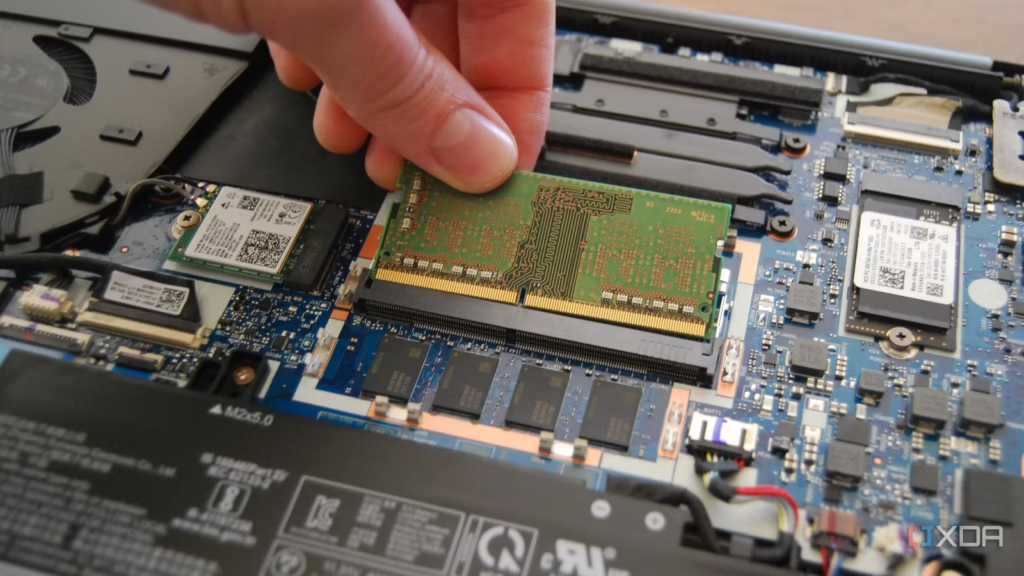
For laptops that do support upgrades, the general process typically involves:
- Checking compatibility. Confirm the maximum RAM your specific model supports and the memory type it requires, using the manufacturer’s official documentation for that exact model.
- Choosing compatible modules. RAM modules need to match the laptop’s supported type and speed to work correctly.
- Powering down and disconnecting. The laptop should be fully powered off and, where applicable, disconnected from power before opening it.
- Accessing the memory compartment. Many upgradeable laptops have a dedicated panel on the underside for this purpose, secured with a small number of screws.
- Installing the modules. Memory modules typically insert at an angle into their slot and then click down into place; forcing a module that doesn’t fit smoothly usually indicates it’s inserted incorrectly.
- Closing up and verifying. After reassembling the laptop, the new total RAM amount can be confirmed through the operating system’s system information or performance monitoring screen.
If any of these steps feel unfamiliar or the laptop’s design makes access unclear, it’s reasonable to have the upgrade performed by a qualified technician rather than risk damaging internal components.
Common Misunderstandings About RAM
“More RAM always makes my laptop faster.” RAM primarily affects multitasking smoothness, not raw task speed. A faster CPU or storage drive (like an NVMe SSD) has a bigger impact on how snappy individual tasks feel.
“RAM and storage are the same thing.” They serve different purposes: RAM is temporary working memory, while storage holds your files and apps permanently.
“I should always buy the maximum RAM available.” Beyond a certain point, extra RAM sits unused if your workload doesn’t require it. It’s more cost-effective to match RAM to your actual use case, especially if the laptop supports future upgrades.
“8GB is always too little.” For very light, basic use, 8GB can still be workable — the caveat is limited headroom for growth or heavier multitasking later.
“High RAM usage shown by the system means something is wrong.” Operating systems intentionally use available RAM for caching to improve responsiveness. High usage alone isn’t necessarily a problem; sluggish performance during multitasking is the more meaningful signal.
“RAM speed matters more than RAM capacity for most users.” For the vast majority of everyday and even gaming use cases, having enough total capacity matters more than the specific speed rating of the modules. Speed differences tend to produce far smaller real-world effects than simply not having enough memory in the first place.
Conclusion
RAM doesn’t make a laptop faster in the way a better processor or SSD does — it determines how gracefully the laptop handles doing several things at once. For most everyday use, 16GB is currently the most balanced choice between cost and long-term comfort. 8GB remains workable for very light use but offers little room to grow. 32GB and above make sense specifically for video editing, 3D work, development environments, or heavy multitasking — not as a default for every buyer.
Before deciding, check whether the RAM in the laptop you’re considering can be upgraded later. If it can’t, it’s worth leaning toward more RAM upfront rather than assuming you can add it down the line. And if you’re ever unsure whether your current laptop is genuinely RAM-limited, the practical symptoms — reloading tabs, laggy app-switching, and slowdowns specifically during multitasking — are a more reliable guide than any single number on a spec sheet.
FAQ
Is 8GB RAM enough for a laptop? It can be enough for very basic tasks like browsing and document editing, but it offers little headroom for multitasking or future software demands. 16GB is generally a safer choice if your budget allows it.
Is 16GB or 32GB RAM better for gaming? 16GB is generally sufficient for most current games. 32GB mainly helps if you’re also streaming, recording, or running several other demanding applications alongside the game.
Does more RAM increase gaming FPS? Not directly. Frame rates are influenced far more by the graphics card and processor. RAM mainly prevents slowdowns caused by multitasking or running out of available memory.
Can I add more RAM to my laptop later? It depends on the model. Some laptops have upgradeable RAM accessible through a panel; others have RAM soldered to the motherboard, which cannot be changed after purchase. Check the specific laptop’s documentation before buying.
Does RAM affect battery life? RAM itself uses relatively little power compared to the display or processor, so it’s not typically a major factor in battery life decisions.
What’s the difference between RAM and storage? RAM is temporary, high-speed memory used for active tasks and clears when the laptop shuts down. Storage (like an SSD) holds your files and applications permanently.
Why does my laptop use so much RAM even when I’m not doing much? Operating systems often keep recently used data cached in memory to improve responsiveness, even after you close an app. High RAM usage on its own isn’t necessarily a sign of a problem.
Does RAM speed matter as much as RAM capacity? For most everyday and gaming use, having enough total capacity generally matters more than the specific speed rating of the RAM modules installed.

Related Articles
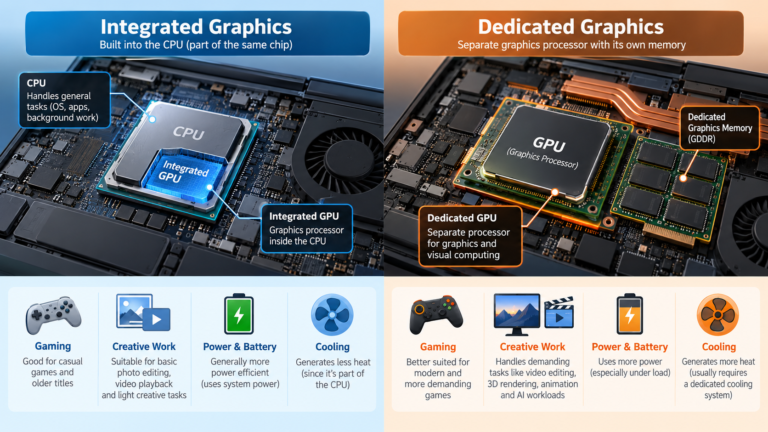
Integrated vs Dedicated Graphics: What’s the Difference?
Every laptop needs something to draw what you see on screen, from a spreadsheet to a video game. That job belongs to the graphics […]
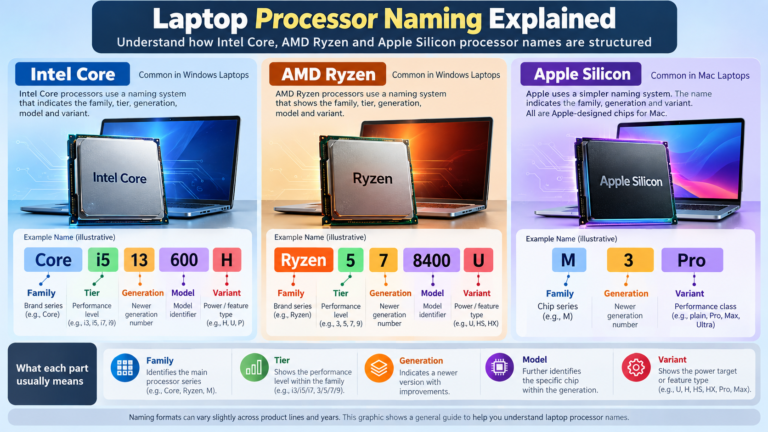
Laptop Processor Names Explained: Intel Core, Ryzen and Apple Silicon
You’re looking at a laptop listing that says “Intel Core Ultra 5 228V” or “AMD Ryzen AI 7 350” or “Apple M5 Pro”. What […]
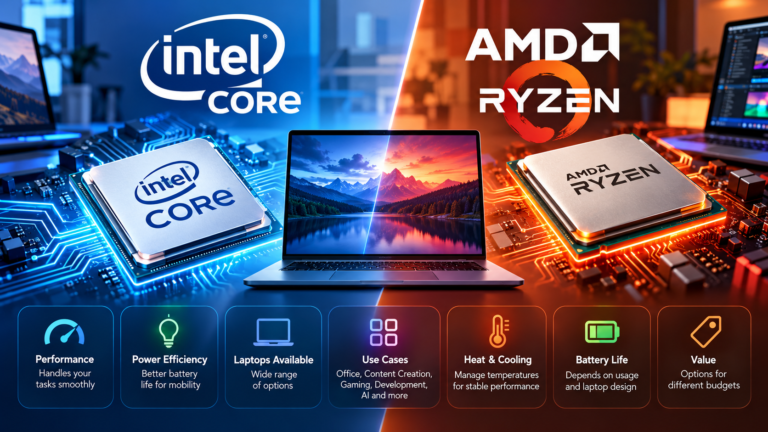
Intel Core vs AMD Ryzen: Which Processor Is Right for You?
Shopping for a new laptop almost always comes down to one early decision: Intel or AMD? The processor badge on the lid feels like […]
Comments (0)