NVMe SSD vs SATA SSD: Speed, Performance and Real-World Differences
If you’ve shopped for a laptop or PC upgrade recently, you’ve probably seen “NVMe SSD” and “SATA SSD” listed as if they’re two flavors […]
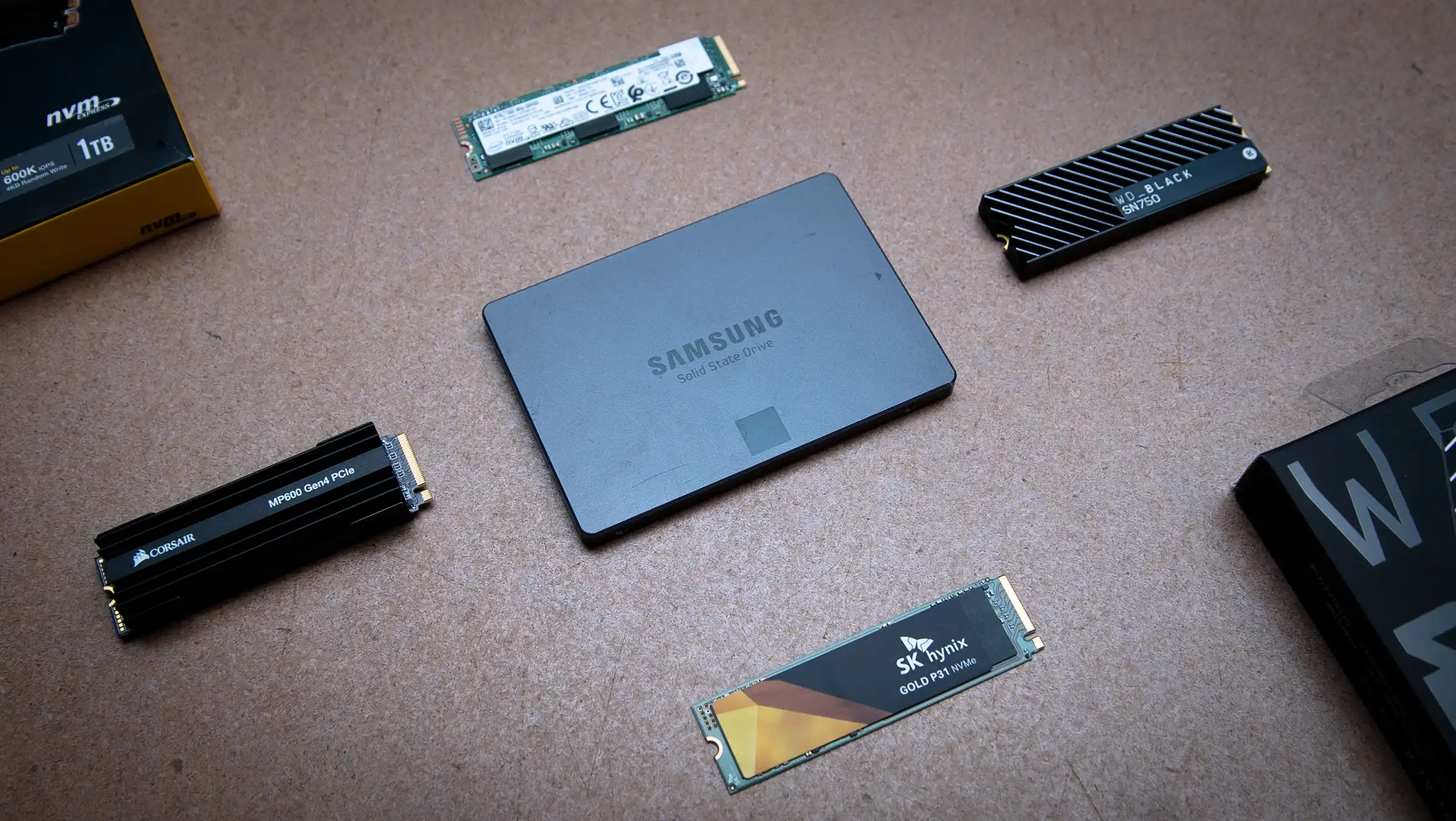
If you’ve shopped for a laptop or PC upgrade recently, you’ve probably seen “NVMe SSD” and “SATA SSD” listed as if they’re two flavors of the same thing. They’re related, but they’re not interchangeable — and to make things more confusing, the term “M.2” gets thrown into the mix as if it settles the question. It doesn’t.
This guide breaks down what SATA and NVMe actually are, why NVMe vs SATA SSD is really a question about interfaces and protocols rather than physical size, and how to figure out which one is right for your system.
Quick Answer: NVMe vs SATA SSD
Short answer: NVMe SSDs generally offer much higher interface bandwidth and lower protocol overhead than SATA SSDs, because NVMe SSDs commonly communicate over PCIe rather than the older SATA interface. However, how much difference this makes in day-to-day use depends on your workload, your computer’s other hardware, and the specific SSD you choose. A faster interface doesn’t automatically make every task on your computer proportionally faster.
What Is a SATA SSD?
SSD (solid-state drive) is a broad category of storage that has no moving parts. Within that category, SATA describes an interface — the connection and communication method a drive uses to talk to the rest of the computer, not the storage technology itself.
A SATA SSD is a solid-state drive that connects to your system using the SATA (Serial ATA) interface, the same interface that has long been used for mechanical hard drives. Because SATA was originally designed with hard drives in mind, SATA SSDs communicate through the same cabling and controller logic that HDDs use, even though the underlying storage is flash memory rather than spinning platters.
Not all SATA SSDs look the same. The most familiar form is the 2.5-inch SATA SSD, shaped like a small hard drive and connected with a SATA data cable and a separate power cable — common in desktops and older or budget laptops. But SATA SSDs also exist in the M.2 form factor: a small, cable-free stick that plugs directly into a motherboard slot but still communicates over the SATA interface rather than PCIe.
SATA SSDs remain useful for a simple reason: they’re a major step up from a mechanical hard drive, they’re broadly compatible with older and newer systems alike, and for many everyday tasks the difference against a faster NVMe drive isn’t the deciding factor.
What Is an NVMe SSD?
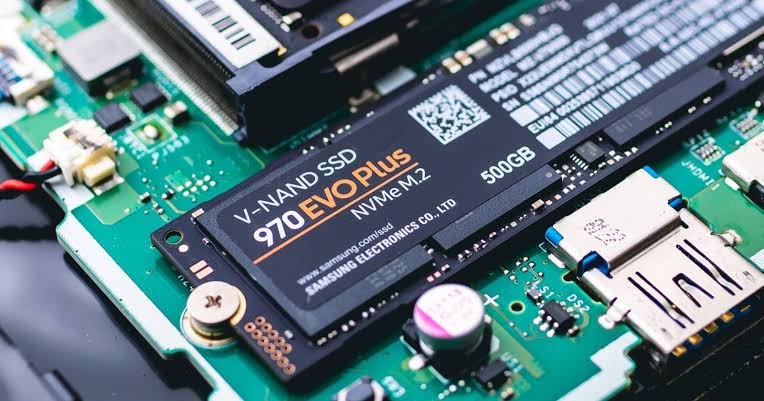
NVMe stands for Non-Volatile Memory Express. It’s not a physical connector or a drive shape — it’s a storage protocol, meaning it defines the rules and commands a drive and a computer use to communicate.
NVMe was designed specifically for flash-based storage, unlike SATA, which was originally built around the assumptions of mechanical hard drives. That distinction matters: hard drives have a single read/write head, so older interfaces and protocols only needed to handle one request at a time efficiently. Flash memory works very differently — it can handle many operations in parallel — and NVMe was built to take advantage of that.
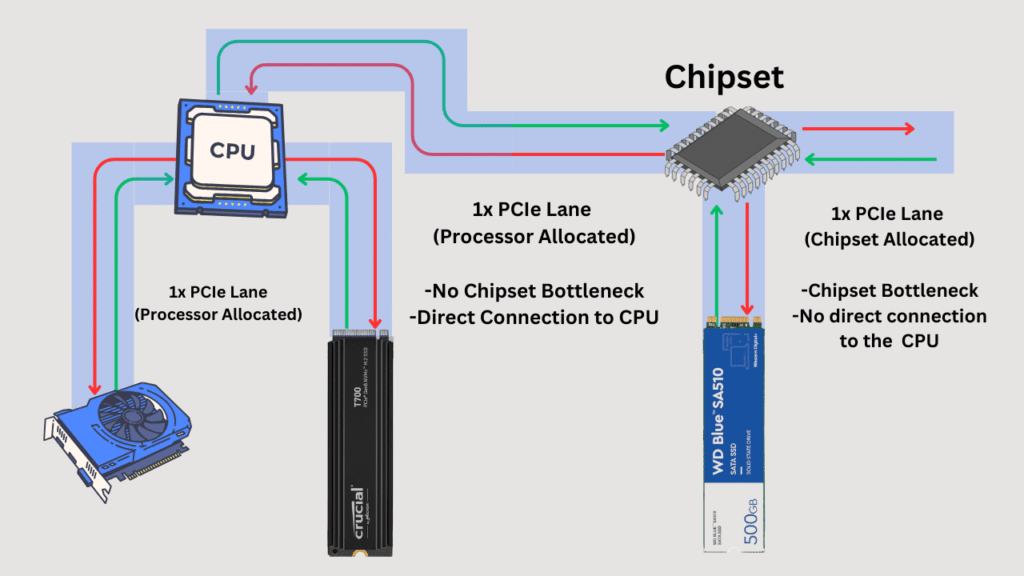
NVMe SSDs commonly communicate over PCIe (Peripheral Component Interconnect Express), a high-speed interface that connects components more directly to the system’s CPU. Because NVMe was designed around flash memory’s strengths and pairs with the wider data path that PCIe provides, NVMe SSDs are well suited to modern solid-state storage in a way that the SATA/AHCI combination, built for hard drives, was never designed to be.
NVMe vs SATA SSD: The Key Difference
Here’s the core distinction, stripped down:
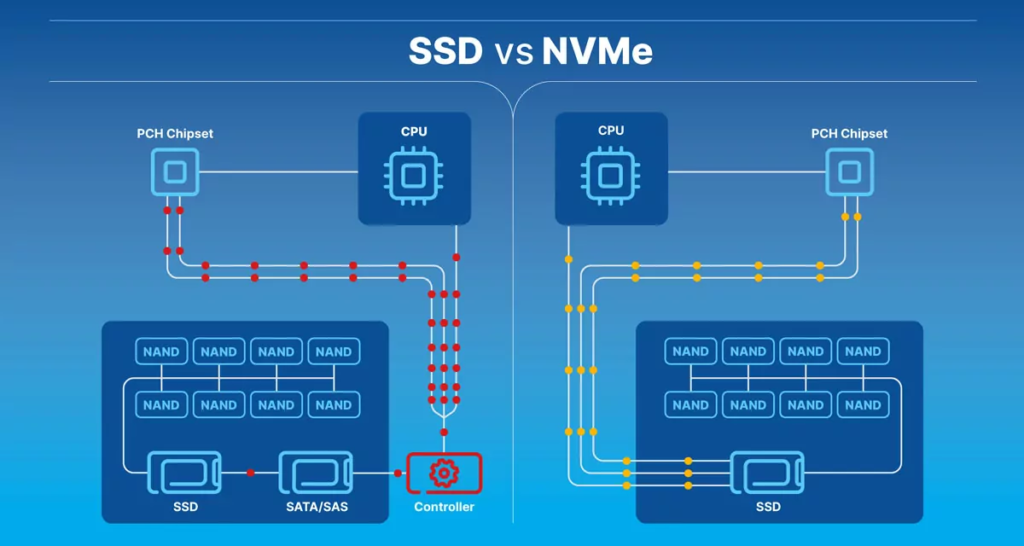
SATA SSD: Computer → SATA interface → SSD NVMe SSD: Computer → PCIe → NVMe SSD
These aren’t just two different cables. SATA and NVMe differ in both interface (the physical/electrical connection) and protocol (the communication rules layered on top of it). SATA SSDs use the SATA interface along with AHCI (Advanced Host Controller Interface), a command set designed for hard drives. NVMe SSDs use the PCIe interface along with the NVMe protocol, designed from the ground up for flash memory.
It would be an oversimplification to say “NVMe is faster because it’s newer.” The real reason is architectural: NVMe was built to remove bottlenecks that AHCI and SATA carried over from hard-drive-era design, and PCIe provides substantially more bandwidth than the SATA interface allows. Age is incidental; design intent is the actual explanation.
M.2 vs NVMe: Why the Terms Are Confused
This is one of the most common points of confusion when buying storage, so it’s worth being precise.
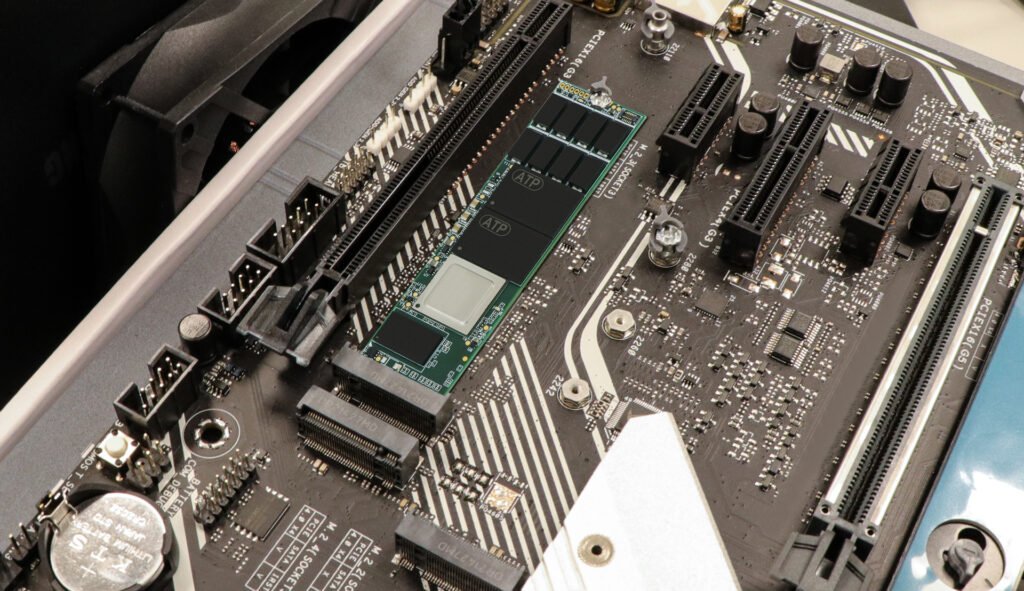
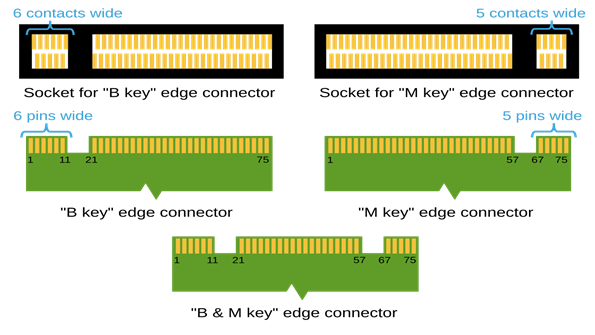
- M.2 is a physical form factor — a small, gum-stick-shaped connector standard. It describes the shape and slot a drive plugs into, nothing about how it communicates.
- NVMe is a protocol — the communication rules a drive uses, typically over PCIe.
- SATA is an interface — a different communication method, generally slower than PCIe.
Both M.2 SATA SSDs and M.2 NVMe SSDs exist. Two drives can look identical — same M.2 stick shape, same slot — and use entirely different interfaces underneath. A laptop’s M.2 slot may support SATA only, NVMe only, or both, depending on how the manufacturer wired that specific slot. This is why “M.2 SSD” is not a reliable stand-in for “NVMe SSD,” even though the two terms are frequently used that way in casual conversation and even in some product listings. Always check the specific drive’s listed interface and protocol, and check what your system’s M.2 slot actually supports, rather than assuming based on form factor alone.
NVMe SSD Speed vs SATA SSD Speed
The SATA interface has a hard ceiling. SATA III — the current and final revision of the SATA specification — tops out at roughly 6 Gbps of interface bandwidth, which translates to a practical maximum of around 600 MB/s for storage devices, regardless of how fast the underlying flash memory could theoretically go. That ceiling isn’t a flaw in any particular SSD; it’s a limit built into the SATA interface itself, and it isn’t expected to increase in future SATA revisions.
PCIe, by contrast, scales. Its bandwidth depends on how many lanes are used and which PCIe generation the system supports, and each new generation roughly doubles per-lane throughput. Since NVMe SSDs commonly connect over PCIe, their potential bandwidth is well beyond what SATA’s interface allows.
Beyond raw bandwidth, NVMe’s protocol design also helps in ways that matter for real usage: it supports many more simultaneous command queues than AHCI, and far greater queue depth per queue. In simple terms, NVMe can juggle many more storage requests in parallel. This particularly benefits random read/write workloads (lots of small, scattered operations, like loading an operating system or running many applications at once) in addition to large sequential transfers.
None of this means every NVMe SSD is fast and every SATA SSD is slow — actual performance also depends on the SSD’s own controller and NAND flash, not just the interface it uses. But the interface and protocol set the ceiling, and NVMe’s ceiling is structurally much higher than SATA’s.
Does NVMe Actually Feel Faster?
This is where interface specs and everyday experience often part ways. A higher theoretical ceiling doesn’t automatically translate into a proportionally faster-feeling computer, because most everyday tasks don’t push a drive anywhere near its maximum throughput.
Consider common activities:
- Starting Windows / booting: Both SATA and NVMe SSDs boot dramatically faster than a hard drive. The SATA-to-NVMe difference in boot time is typically much smaller than the HDD-to-SSD jump.
- Opening applications and browsing: These tasks are often limited more by CPU, RAM, and the application itself than by storage interface speed.
- Office work: Document editing, spreadsheets, and similar tasks rarely saturate even a SATA SSD’s bandwidth.
- Loading games: Can benefit from NVMe, especially with large open-world titles that stream assets during play — see the gaming section below.
- Copying large files: This is where NVMe’s higher bandwidth is more likely to be noticeable, particularly for large, sustained transfers.
- Editing large media files: Video and high-resolution photo work can benefit from NVMe’s throughput and parallelism, especially with large project files or scrubbing through footage.
- Compiling software: Can benefit from NVMe’s faster random read/write and higher queue depth, since compilation involves many small file operations.
- Working with large datasets: Similarly workload-dependent — benefits scale with how much the task relies on sustained or highly parallel storage access.
The general pattern: workloads dominated by moving or accessing large amounts of data, or many files at once, are where NVMe’s theoretical advantage is most likely to show up in practice. Lighter, everyday tasks are less likely to feel meaningfully different between a modern SATA SSD and an NVMe SSD. It’s important to distinguish theoretical/interface performance (what the specification allows) from real-world application performance (what you actually experience), since the two are related but not the same thing.
NVMe vs SATA SSD for Gaming
Storage affects two things in gaming: how quickly game data loads, and, in some newer titles, how smoothly assets stream in during gameplay (for example, large open-world environments). NVMe’s higher bandwidth and parallelism can help with both, particularly in games that stream large amounts of world or texture data on the fly.
That said, storage speed does not determine your frame rate. FPS performance is primarily governed by the GPU and CPU, along with settings like resolution and graphics quality. An NVMe SSD is not a substitute for graphics hardware, and it will not increase FPS on its own. Whether NVMe is “necessary” for gaming depends on the games you play and your priorities: it’s less critical for smaller or less data-intensive titles, and more relevant for very large, asset-heavy, open-world games where loading and streaming performance is part of the experience.
NVMe vs SATA SSD for Everyday Laptop Use
For general laptop use — web browsing, office applications, everyday file management, and typical multitasking — a SATA SSD already represents a major improvement over a hard drive, and many everyday tasks don’t come close to using its full bandwidth. In this context, the practical difference between SATA and NVMe can be subtle. Booting and launching commonly used applications may feel similar on both, especially once the operating system and apps are cached in RAM.
Where the difference becomes more noticeable is under heavier or more sustained loads: working with many large files at once, running demanding multitasking sessions, or handling large data-heavy applications. If your day-to-day use is lighter, a SATA SSD may be entirely sufficient; if you regularly push your system harder, NVMe’s higher ceiling gives you more headroom.
NVMe vs SATA SSD for Large File Transfers
This is one of the areas where NVMe’s higher interface bandwidth is most likely to be noticeable — copying large video files, moving photo libraries, running backups, or handling other data-heavy workloads.
That said, real-world transfer speed depends on more than just the destination drive’s interface:
- The source drive matters as much as the destination — a transfer is only as fast as its slowest link.
- PCIe generation affects how much bandwidth an NVMe drive can actually use.
- SSD controller and NAND type influence sustained performance, not just peak numbers.
- Thermal conditions can cause some NVMe drives to throttle during long, sustained transfers.
- Operating system overhead and file system behavior play a role.
- File sizes matter: many small files behave differently than one large file, due to overhead per file operation.
- Sustained-write behavior: some SSDs slow down once their fast write cache is exhausted during very large, continuous transfers.
In short, a faster interface raises the ceiling, but the actual transfer speed you get depends on the whole chain, not just one drive’s rated specification.
NVMe vs SATA SSD: Power and Heat
Power consumption and thermal behavior vary by SSD design, workload, controller, interface, and how the system implements cooling — there isn’t a universal rule that one interface is always more efficient or always runs hotter than the other. High-performance NVMe drives, particularly those using newer, faster PCIe generations under sustained heavy workloads, can generate more heat and may benefit from a heatsink or adequate airflow to avoid thermal throttling. Lighter-use NVMe drives and typical SATA SSDs generally don’t face the same thermal pressure under normal use. Because specific power and temperature figures vary significantly by product, this article does not cite exact numbers — check a specific SSD’s own documentation for verified specifications.
NVMe SSD Advantages
- Substantially higher potential interface bandwidth than SATA, since NVMe SSDs commonly use PCIe.
- A protocol designed specifically around flash memory’s parallel nature, rather than adapted from hard-drive-era design.
- Greater command queue depth and parallelism, which can benefit random-access-heavy workloads like booting, multitasking, and compiling.
- Meaningful benefits for large file transfers, media editing, and data-heavy work, where sustained throughput matters.
- Available in compact M.2 form factors with no separate data or power cables in most laptop and desktop implementations.
NVMe SSD Limitations
- Requires a system with a compatible PCIe/NVMe-capable M.2 slot and appropriate BIOS/UEFI support — not every system offers this.
- High-performance NVMe drives can run hotter under sustained heavy workloads and may need a heatsink or good airflow.
- Higher-end NVMe drives can cost more per gigabyte than comparable SATA SSDs, though this varies by product and market.
- Many everyday workloads don’t push a drive hard enough to make full use of NVMe’s higher ceiling, so the practical benefit depends heavily on what you actually do with your computer.
- Older laptops and some budget systems may only support SATA-based M.2 slots or 2.5-inch SATA bays, regardless of drive availability.
SATA SSD Advantages
- A mature, well-established technology with a long track record.
- Broad compatibility — SATA is supported by the vast majority of laptops and desktops, including older systems.
- Strong everyday performance, especially compared with mechanical hard drives.
- Available in both 2.5-inch and M.2 form factors, giving flexibility depending on the system.
- A practical, often more affordable upgrade path for systems that don’t support NVMe.
SATA SSD Limitations
- Interface bandwidth is capped by the SATA III specification, well below what PCIe/NVMe can offer.
- Lower potential throughput and parallelism than NVMe, particularly under heavy random-access or large-transfer workloads.
- Whether these limitations actually matter depends on the workload — for lighter, everyday use, the ceiling is rarely the bottleneck.
Which Is Better: NVMe or SATA SSD?
There’s no universal winner — the right choice depends on your system and what you do with it.
Choose NVMe when:
- Your computer supports it (compatible M.2 slot, PCIe lanes, and BIOS/UEFI support).
- High storage performance genuinely matters for your workload.
- You regularly work with large files, media editing, compiling, or data-heavy tasks that benefit from higher throughput.
- You’re building or upgrading a modern, performance-oriented system.
Choose SATA SSD when:
- Your computer only supports SATA (common in older laptops and some budget systems).
- Broad compatibility and a straightforward upgrade matter more than peak performance.
- Your workload is mostly everyday tasks — browsing, office work, general use — that don’t heavily tax storage bandwidth.
- A SATA SSD is the practical, cost-effective upgrade for your existing system.
Can You Upgrade From SATA SSD to NVMe?
It depends on your system. Before buying an NVMe SSD as an upgrade, check:
- M.2 slot availability — does your laptop or motherboard even have one?
- Supported interface — some M.2 slots only support SATA, some only NVMe, and some support both.
- Motherboard/laptop specifications — the manufacturer’s documentation will state what the slot supports.
- BIOS/UEFI support — older systems occasionally need a firmware update to properly recognize NVMe boot drives.
- Physical compatibility — M.2 drives come in different lengths (commonly noted as numbers like 2280), and not every slot accommodates every length.
- Operating-system migration requirements — moving your existing OS and data to a new drive typically requires a cloning tool or a fresh installation.
Never install an NVMe drive in a system without first confirming compatibility — an NVMe SSD in a SATA-only M.2 slot generally will not function as an NVMe device, even though it may physically fit.
How to Check Whether Your Laptop Supports NVMe
A safe, general process:
- Check the laptop manufacturer’s published specifications for your exact model.
- Check the service manual, if available, which often details the storage slot’s supported interfaces.
- Check motherboard or system documentation for desktops.
- Identify the available M.2 slot(s) in your system.
- Verify which storage interfaces that specific slot supports — SATA, NVMe, or both — rather than assuming from the slot’s physical appearance.
For a broader walkthrough of identifying your system’s components, see how to check your laptop’s CPU, RAM, GPU and storage. Avoid relying on generic or model-agnostic instructions — always confirm against documentation for your specific device.
NVMe vs SATA SSD: Which Should You Buy?
- General users: A SATA SSD is often sufficient if your system doesn’t support NVMe; if it does, a mainstream NVMe drive is a solid, future-friendly choice.
- Office users: SATA SSD performance is typically more than adequate for document and browser-based work.
- Students: A SATA SSD offers a cost-effective, broadly compatible option; NVMe is a nice-to-have rather than a necessity for typical coursework.
- Gamers: NVMe is worth prioritizing for large, asset-heavy or open-world titles; for lighter game libraries, a SATA SSD is still a major upgrade over an HDD.
- Content creators: NVMe’s throughput and parallelism benefit large media files, project scrubbing, and export workloads.
- Developers: NVMe’s random-access and parallel performance can meaningfully speed up compiling and working with large codebases or datasets.
- Large-file users: NVMe is generally the better fit for frequent large transfers, backups, or data-heavy work.
- Laptop upgraders: Check your system’s M.2 slot support first — that determines whether NVMe is even an option before performance preferences come into play.
Final Verdict
NVMe generally offers a higher performance ceiling than SATA, largely because NVMe SSDs commonly run over PCIe rather than the interface-limited SATA connection. At the same time, SATA SSDs remain genuinely useful and capable, especially for everyday computing and for systems that don’t support NVMe. How much the difference matters to you depends on your workload — heavier, data-intensive tasks are where NVMe’s advantage tends to show up, while lighter everyday use often doesn’t strain either technology.
Compatibility is the practical gatekeeper here: M.2 does not automatically mean NVMe, and not every system with an M.2 slot supports NVMe drives. Before buying an SSD, check what your specific laptop or PC supports — that single step determines your real options far more than any spec sheet comparison.
FAQ
Is NVMe better than SATA SSD? NVMe generally offers a higher performance ceiling due to its use of PCIe and a protocol built for flash memory. Whether that translates to a noticeably “better” experience depends on your workload and whether your system supports NVMe.
Is NVMe faster than SATA SSD? In terms of interface bandwidth and parallel command handling, yes — NVMe’s potential throughput is structurally higher than SATA’s. Real-world speed also depends on the specific drive, your system, and the task at hand.
Is M.2 the same as NVMe? No. M.2 is a physical form factor. NVMe is a protocol. An M.2 SSD can use either SATA or NVMe, so the form factor alone doesn’t tell you which one you have.
Can an M.2 SSD be SATA? Yes. M.2 SATA SSDs exist alongside M.2 NVMe SSDs — they look similar but communicate differently, and only one may be supported by your system’s slot.
Is NVMe worth it for a normal laptop? For typical everyday use — browsing, office work, general apps — the difference may be modest. It becomes more worthwhile if you regularly handle large files, heavy multitasking, or data-intensive work.
Is SATA SSD still good? Yes. A SATA SSD is still a major upgrade over a mechanical hard drive and remains a practical, broadly compatible option, particularly for systems that don’t support NVMe.
Can I replace a SATA SSD with an NVMe SSD? Only if your system has a compatible NVMe-capable M.2 slot and appropriate firmware support. Always verify compatibility with your manufacturer’s documentation before purchasing.
Which is better for gaming, NVMe or SATA SSD? NVMe can help with load times and asset streaming, especially in large open-world games. SATA SSD is still a solid, more affordable option for many game libraries. Neither replaces the GPU/CPU for frame rate performance.
Does NVMe improve FPS? No. Frame rate is primarily determined by the GPU and CPU. NVMe can improve loading and streaming, but it does not directly increase FPS.
How do I know if my laptop supports NVMe? Check your manufacturer’s official specifications and, if available, the service manual, to see what interfaces your M.2 slot supports before purchasing a drive.

Related Articles
Integrated vs Dedicated Graphics: What’s the Difference?
Every laptop needs something to draw what you see on screen, from a spreadsheet to a video game. That job belongs to the graphics […]
Laptop Processor Names Explained: Intel Core, Ryzen and Apple Silicon
You’re looking at a laptop listing that says “Intel Core Ultra 5 228V” or “AMD Ryzen AI 7 350” or “Apple M5 Pro”. What […]
Intel Core vs AMD Ryzen: Which Processor Is Right for You?
Shopping for a new laptop almost always comes down to one early decision: Intel or AMD? The processor badge on the lid feels like […]
Comments (0)