SSD vs HDD: What’s the Difference and Which Should You Choose?
If you’ve ever shopped for a laptop or tried to speed up an old PC, you’ve probably run into the terms SSD and HDD. […]
If you’ve ever shopped for a laptop or tried to speed up an old PC, you’ve probably run into the terms SSD and HDD. Both are types of storage that hold your operating system, apps, photos, and files — but they work in completely different ways, and that difference affects how fast, quiet, and durable your computer feels day to day.
This guide breaks down SSD vs HDD in plain language: what each one is, how they work, where each one still makes sense, and how to decide which type of laptop storage is right for you.
Quick Answer: SSD vs HDD
Short answer: For most modern laptops and everyday PCs, an SSD is the better primary storage choice because it provides faster access to files and applications, operates silently, and has no moving mechanical parts. HDDs can still be useful when large amounts of storage are more important than speed and cost per gigabyte matters.
In other words, when people ask “SSD or HDD,” the honest answer is “it depends on what you’re storing and how you use your computer” — and this guide will help you figure out which side of that decision you fall on.
What Is an SSD?
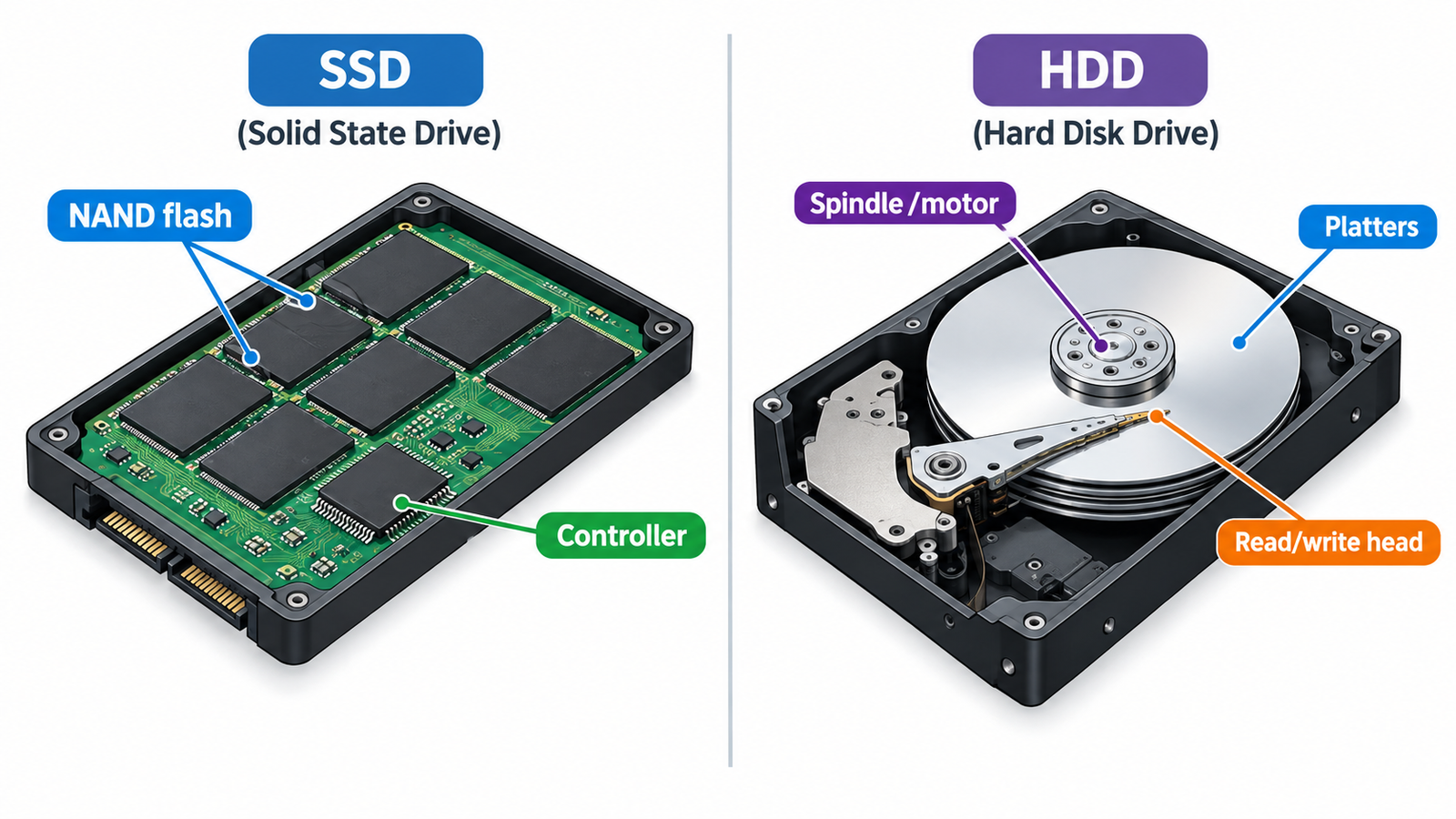
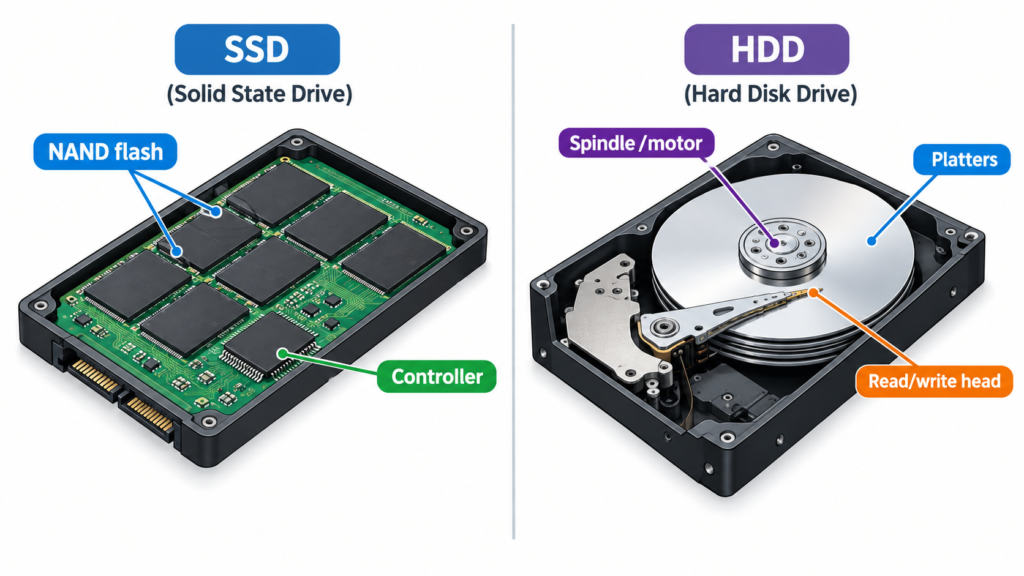
An SSD (solid-state drive) is a type of storage that saves your data on memory chips instead of spinning disks. There are no moving parts inside an SSD — no motors, no spinning platters, no mechanical arms.
In simple terms: an SSD stores data the same way a USB flash drive does, just at a larger scale and with more sophisticated internal management.
Here’s how it works, in beginner-friendly steps:
- NAND flash memory — This is the actual memory where your data physically lives. Data is stored as electrical charges inside memory cells on these chips. According to Samsung, an SSD is largely composed of NAND flash for storing data, a controller that manages data transfers, and a DRAM cache in higher-end models.
- The controller — Think of this as the “traffic manager” of the SSD. It’s a small processor that decides exactly where on the memory chips your data is written and read from, and it handles background tasks that keep the drive running efficiently.
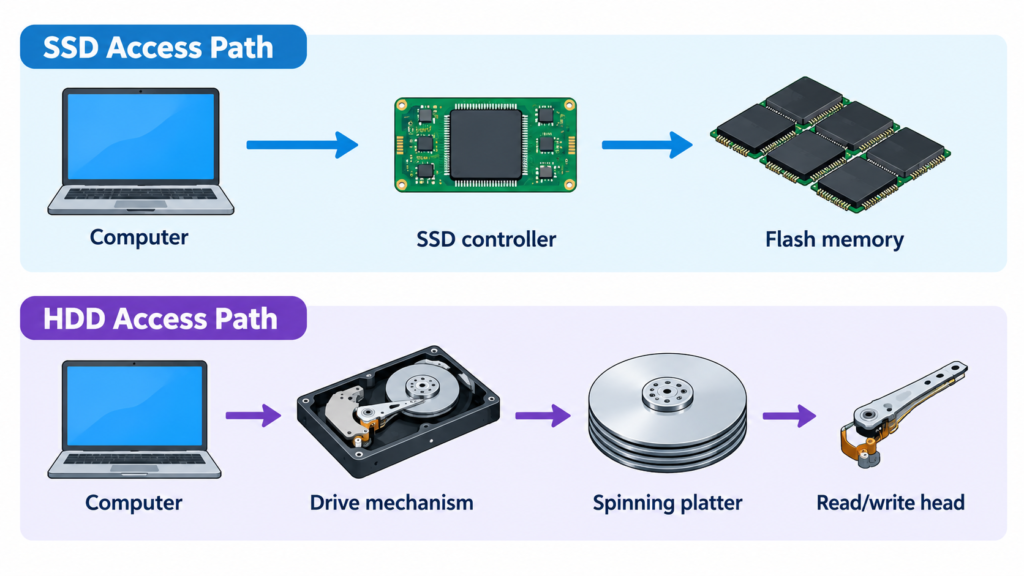
- No mechanical movement — Because there’s nothing spinning or physically moving to locate your data, the SSD can access almost any piece of stored data nearly instantly.
Because everything happens electronically rather than mechanically, SSDs tend to respond faster, run silently, and hold up better if a laptop gets bumped or moved around.
What Is an HDD?
An HDD (hard disk drive) is the older, mechanical form of storage that has been used in computers for decades. Instead of memory chips, an HDD stores data on spinning magnetic disks.
Here’s the simple version: an HDD stores data on spinning magnetic disks, and a small mechanical arm moves a read/write head over those disks to access the data.
Breaking that down further:
- Platters — These are the rigid, circular disks inside the drive, coated with a magnetic material. This is where your data actually lives, recorded as tiny magnetized regions.
- Spindle and motor — A motor spins the platters at high speed so the read/write head can reach different parts of the disk.
- Read/write head — A small arm hovers just above the spinning platter (without touching it) and reads or writes data by sensing or changing the magnetic pattern on the surface, similar in concept to a record player needle reading a vinyl record, but without physical contact.
Because an HDD has to physically move a mechanical arm and wait for the correct part of the spinning disk to come around, accessing data naturally takes longer than it does with an SSD, and the moving parts are more exposed to wear, vibration, and shock over time.
SSD vs HDD: Key Differences
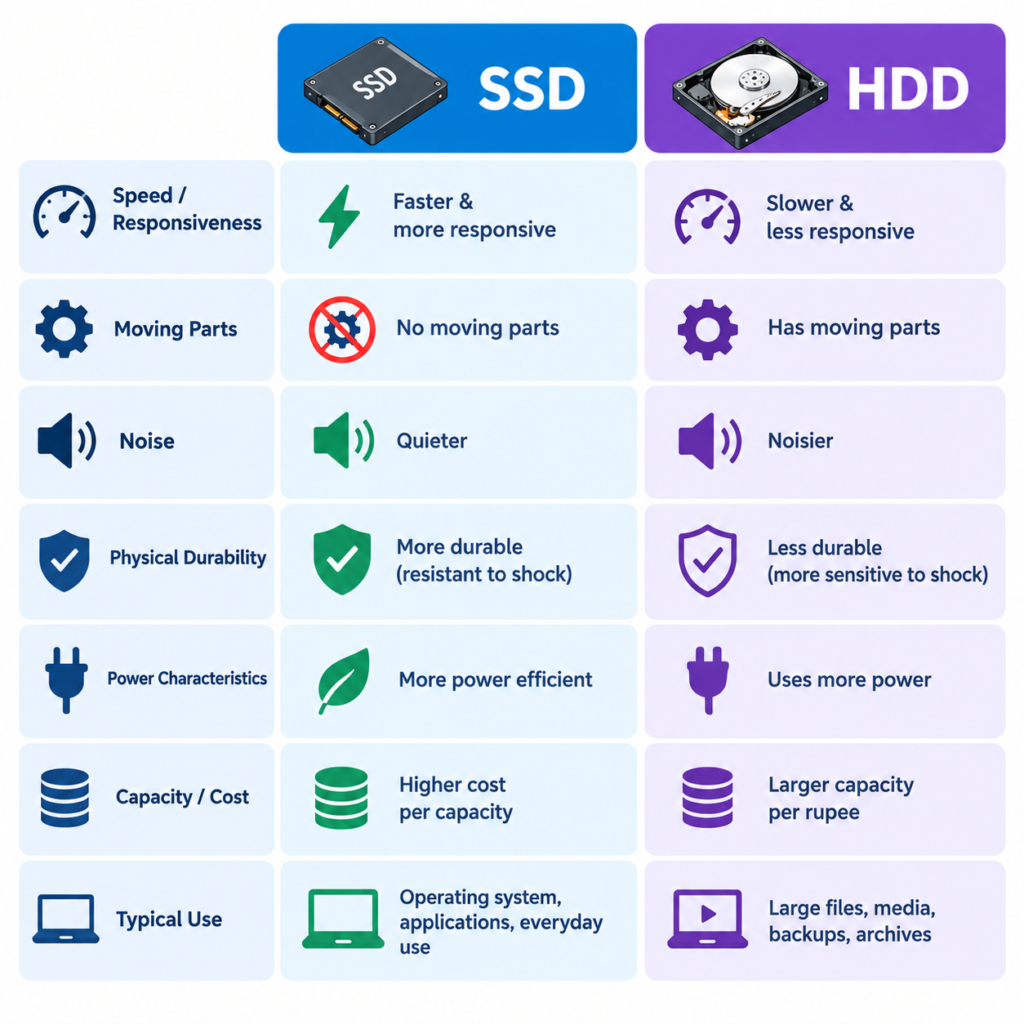
Here’s a side-by-side look at how the two technologies compare on the factors that matter most to everyday users.
| Feature | SSD | HDD |
|---|---|---|
| Storage technology | NAND flash memory chips | Spinning magnetic platters |
| Moving parts | None | Spinning platters, actuator arm, read/write head |
| General responsiveness | Data is accessed electronically, so the system typically feels more responsive | Data access depends on mechanical movement, which typically makes it feel slower |
| Noise | Silent — no motors or moving parts | Can produce audible spinning and clicking sounds during operation |
| Physical durability | More resistant to shock and vibration because there are no moving parts | More vulnerable to damage from drops, bumps, or vibration |
| Power characteristics | Generally uses less power since there’s no motor to spin | Generally uses more power to spin platters and move the read/write head |
| Capacity options | Widely available in a range of capacities, though very high-capacity consumer SSDs can cost more | Widely available in large capacities, often at a lower cost per gigabyte |
| Cost considerations | Typically higher cost per gigabyte than HDDs | Typically lower cost per gigabyte, especially at large capacities |
| Best suited for | Operating system, applications, everyday responsiveness | Bulk storage, backups, archives, large media libraries |
Only qualitative, source-supported comparisons are included here — this table intentionally avoids invented numerical ratings or unverified speed percentages, since exact figures vary by specific product and generation.
SSD Speed vs HDD Speed
One of the most common reasons people switch from an HDD to an SSD is the difference in everyday SSD speed.
Here’s why SSDs generally feel faster in real-world use:
- File access — Because an SSD has no mechanical arm that needs to physically move, it can jump to almost any stored file nearly instantly, regardless of where that data sits on the drive.
- Application loading — Programs stored on an SSD typically open faster because the system doesn’t have to wait for a read/write head to locate scattered pieces of program data.
- Operating-system startup — Booting up a computer involves reading many small files in a short period. An SSD’s lack of mechanical delay generally makes this process noticeably quicker.
- File transfers — Moving large files, such as videos or backups, tends to be faster on an SSD, particularly for tasks involving many small files at once.
- Random access — This refers to reading or writing data scattered in different locations on the drive rather than one continuous block. SSDs handle this kind of access far more efficiently than HDDs because there’s no physical head that needs to keep repositioning itself.
- Sequential operations — This refers to reading or writing one large continuous block of data, such as a single large video file. Both SSDs and HDDs can perform reasonably well here, but SSDs still generally maintain an advantage.
It’s worth noting that exact speed multipliers vary significantly depending on the specific SSD and HDD models, their interfaces (such as SATA or NVMe), and the workload involved — so this guide intentionally avoids quoting a single “X times faster” figure. What’s consistently true across sources, including Microsoft’s own guidance, is that SSDs are smaller and faster than HDDs as a general rule.
SSD vs HDD for Laptops
Storage type matters more in laptops than in almost any other kind of computer, because laptops are portable, battery-powered, and get moved around and bumped far more than desktops.
Here’s what matters most for laptop storage specifically:
- Responsiveness — Because laptops are often used for quick, everyday tasks — opening a browser, switching between apps, resuming from sleep — the snappier feel of an SSD tends to be noticeable in daily use.
- Battery considerations — SSDs generally consume less power than HDDs since there’s no motor spinning a disk. However, the actual impact on battery life varies by device and workload, so this article won’t cite a specific battery-life improvement percentage unless that figure comes from a verified source.
- Physical movement and shock — Laptops get carried, set down, occasionally bumped, and sometimes dropped. Because an SSD has no moving parts, it’s inherently more resistant to this kind of everyday physical stress than an HDD, whose spinning platters and read/write head are more exposed to damage from shock and vibration.
- Weight — SSDs are generally smaller and lighter than HDDs, which is one reason manufacturers use them in thin-and-light laptop designs.
- Noise — An SSD produces no operating noise, which matters in a laptop that might sit on your desk, your lap, or in a quiet room.
- Internal storage options — Not every laptop supports every storage type or size. Some laptops only have room for a single M.2 SSD slot, while others may still support a 2.5-inch drive bay. Always check your specific laptop’s supported storage interfaces before buying a replacement or upgrade drive.
For most people buying a new laptop today, an SSD as the primary (and often only) drive is the standard, mainstream choice — which is also reflected in current retail laptop lineups, where SSDs have largely replaced HDDs as the default option.
Storage speed is only one part of how fast a laptop feels overall — memory also plays a major role, which is worth understanding alongside storage. See our guide on how much RAM your laptop needs for the other half of that equation, and our broader guide on how to choose a laptop if you’re shopping for a new machine altogether.
SSD vs HDD for Desktop PCs
Desktop PCs generally offer more flexibility than laptops when it comes to storage, since many desktop cases have room for multiple drives at once. That opens up a few different scenarios:
- General desktop use — For everyday browsing, office work, and typical productivity tasks, an SSD as the main drive provides a noticeably more responsive experience.
- Gaming — Many modern games benefit from faster load times, which is one reason SSDs have become common as the primary drive for gaming PCs. Large game libraries, however, can still make an additional HDD useful for titles that are played less frequently.
- Media storage — Large collections of photos, videos, or music don’t necessarily need the fastest possible access speed, which makes an HDD a practical, cost-effective option for this kind of bulk storage.
- Large file collections — Archives, project backups, and reference libraries are often better suited to an HDD’s higher capacity per rupee or dollar spent.
- Backup and storage archives — Since backups are typically written once and read infrequently, the mechanical speed limitations of an HDD matter less here than they would for an operating system drive.
A common and practical desktop setup uses an SSD for the operating system and frequently used applications, paired with a larger HDD for bulk storage — more on that combination below.
SSD Advantages
- Faster everyday responsiveness — Due to the lack of mechanical movement, SSDs generally provide quicker file access, application loading, and boot times.
- Silent operation — With no motors or moving parts, SSDs produce no operating noise.
- Greater physical durability — SSDs are more resistant to damage from drops, bumps, and vibration because there’s nothing mechanically moving inside.
- Smaller and lighter — This makes SSDs well suited to thin, lightweight, and compact laptop designs.
- Lower power draw — Without a spinning motor, SSDs generally consume less power than HDDs.
SSD Limitations
- Higher cost per gigabyte — SSDs generally cost more than HDDs for the same amount of storage capacity, particularly at very high capacities.
- Finite write endurance — Each memory cell in an SSD can only be written to a limited number of times before it wears out. Modern SSDs use wear-leveling techniques to spread writes evenly and mitigate this, and for typical consumer use this is rarely a practical concern — but it’s a real characteristic of the underlying flash memory technology, not something unique to any one brand.
- Not every SSD performs the same — Performance can vary significantly based on the SSD’s interface (SATA vs NVMe), the quality of its controller, and its NAND type, so “SSD” alone doesn’t guarantee a specific speed.
HDD Advantages
- Lower cost per gigabyte — HDDs generally remain more cost-effective than SSDs for large amounts of storage.
- Large, widely available capacities — HDDs are well established for bulk storage needs, such as archives and backups.
- Long-standing, familiar technology — Decades of use mean HDDs remain a well-understood and widely supported storage option, particularly in desktop and enterprise settings.
HDD Limitations
- Slower everyday responsiveness — Because data access depends on mechanical movement, HDDs are generally slower than SSDs for tasks like booting up, loading applications, and accessing scattered files.
- Audible operation — The spinning platters and moving read/write head can produce noticeable noise.
- Greater vulnerability to physical shock — Moving mechanical components make HDDs more susceptible to damage from drops or strong vibration, particularly while the drive is actively spinning.
- Higher power draw — Spinning a motor and moving a mechanical arm generally requires more power than an SSD’s electronic operation.
Can You Use an SSD and HDD Together?
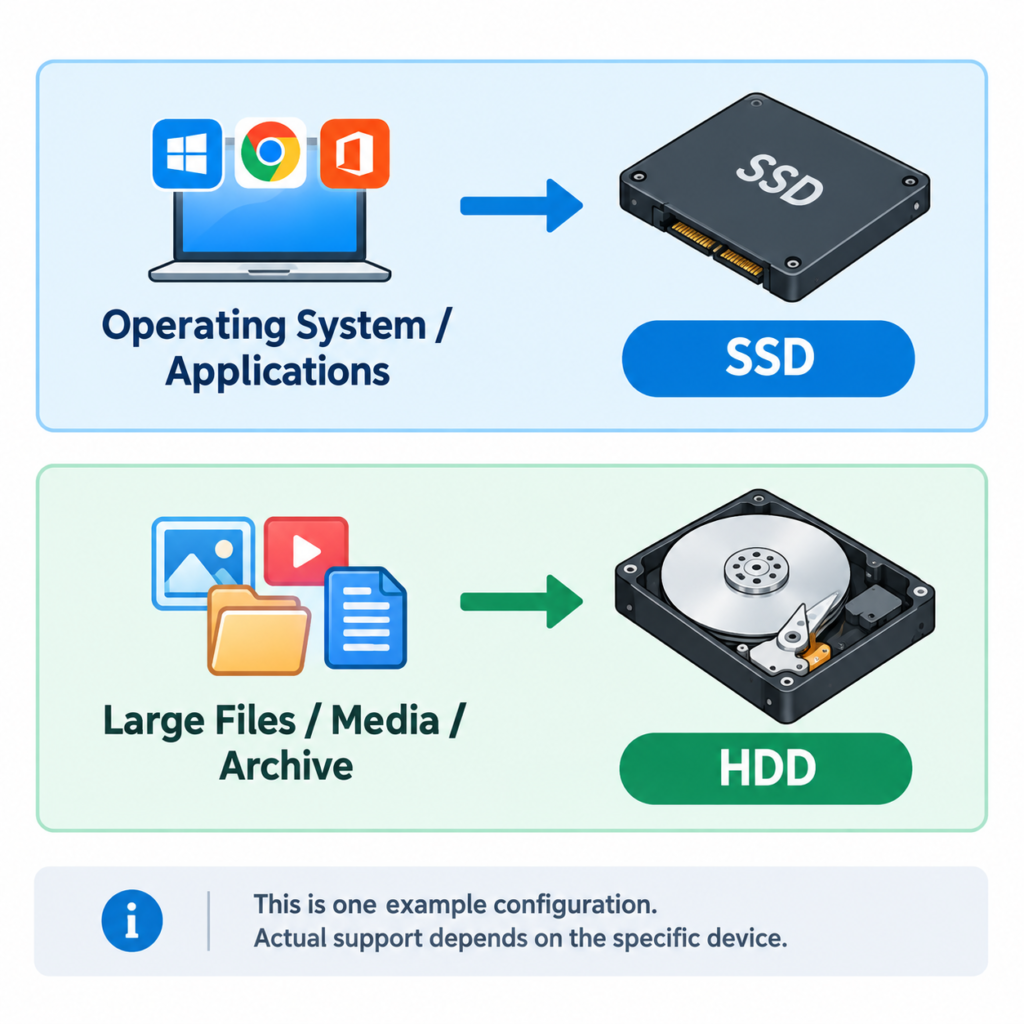
Yes — many desktop PCs, and some laptops, support using both an SSD and an HDD at the same time. This is a common and practical configuration:
- SSD for the operating system and applications — This is where the SSD’s speed advantage matters most, since it’s where you’ll notice faster boot times and quicker app launches.
- HDD for large files or secondary storage — Media libraries, backups, and archives can live on the HDD, taking advantage of its lower cost per gigabyte without sacrificing the responsiveness of your primary drive.
However, whether this setup is possible on a specific computer depends on that computer’s available drive bays, connectors, and storage interfaces. Many modern thin laptops, for example, only have room for a single M.2 SSD slot and no space for a second physical drive, while many desktop towers have room for both an M.2/SATA SSD and a 3.5-inch HDD. Always check your specific device’s specifications — or consult a technician — before assuming a dual-drive setup is possible.
SSD vs HDD: Which Should You Choose?
There’s no single universally correct answer — the right choice depends on what you value more: responsiveness or raw capacity per dollar.
Choose an SSD if you:
- Want a responsive laptop or PC
- Frequently open applications
- Want faster boot and loading
- Prefer silent operation
- Need better resistance to physical movement, such as in a laptop that travels with you
Consider an HDD if you:
- Need a large amount of relatively inexpensive storage
- Mainly store large collections of files you don’t access constantly
- Have a desktop with room for additional drives
- Do not need high storage responsiveness for the data being stored, such as archives or backups
For many people today, the practical answer is “SSD as the primary drive,” with an HDD added only if bulk, low-cost storage is genuinely needed.
What About NVMe SSDs?
You may have also seen the term NVMe used alongside SSD. It’s worth clarifying that SSD is the broader storage technology category, while NVMe is a protocol — a set of rules for how data travels between the drive and the rest of the computer — commonly used with SSDs that connect via a PCIe interface.
In practical terms: not all SSDs use NVMe. Many SSDs still use the older SATA interface, which is generally slower than an NVMe/PCIe connection. Since interface choice can meaningfully affect an SSD’s real-world speed, it’s a good example of why “SSD” alone doesn’t tell you everything about how fast a specific drive will be.
This article intentionally keeps that explanation brief. For a deeper comparison of the two SSD interface types, see our dedicated guide: NVMe SSD vs SATA SSD.
SSD vs HDD for Different Types of Users
- Students — An SSD-equipped laptop generally offers a more responsive, portable experience for note-taking, research, and everyday coursework, especially when combined with cloud storage for larger files.
- Office users — For typical office software and web-based work, an SSD’s faster boot and load times make daily tasks feel smoother, though storage speed alone won’t fix every performance bottleneck.
- Home users — A single SSD is often sufficient for general browsing, streaming, and everyday use, with cloud services or an external drive handling overflow storage.
- Gamers — Faster game load times make SSDs a popular choice for the primary drive, with a secondary HDD sometimes added for a larger game library.
- Content creators — Faster read/write speeds can help when working with large project files, though very large raw media libraries may still benefit from additional HDD storage for archiving.
- Photographers and video users — Active projects benefit from an SSD’s responsiveness, while completed or archived media collections are often better suited to lower-cost HDD storage.
- Users with large media libraries — When the priority is maximum storage capacity at the lowest cost per gigabyte for content that isn’t accessed constantly, an HDD remains a practical option.
Common SSD and HDD Misconceptions
- More storage capacity does not automatically mean faster storage. A larger drive isn’t inherently quicker — speed depends on the underlying technology and interface, not the number of gigabytes available.
- SSD and HDD refer to different storage technologies, not different brands or tiers of the same technology — they store and access data in fundamentally different ways.
- SSDs do not have to replace HDDs in every scenario. Many systems, particularly desktops, still make practical use of both.
- An SSD’s interface can affect performance. As covered above, an NVMe/PCIe SSD and a SATA SSD are not the same in terms of potential speed, even though both are “SSDs.”
- Not every SSD has the same performance. Controller quality, NAND type, and interface all influence how fast a specific SSD actually is.
- A computer’s overall performance is not determined by storage alone. Processor, memory (RAM), and other components also play a major role in how a computer feels to use — see our guide on how much RAM your laptop needs for more on that side of the equation.
Final Verdict
For most modern laptops and everyday PCs, an SSD is the more sensible primary storage choice. Its lack of moving parts translates into faster everyday responsiveness, silent operation, and better resistance to the physical bumps and movement that come with normal use — particularly important for laptops.
That said, HDDs haven’t disappeared for good reason: when the priority is storing large amounts of data at a lower cost per gigabyte — think archives, backups, or extensive media libraries — an HDD still does that job efficiently.
For many desktop setups, combining an SSD for the operating system and applications with an HDD for bulk storage offers a practical middle ground, provided the specific computer supports both drives.
If you’re a beginner trying to make a simple decision: prioritize an SSD for your main drive for a noticeably more responsive computer, and only add HDD storage if you specifically need a large amount of low-cost capacity for files you don’t need instant access to.
FAQ
Is an SSD better than an HDD? For most everyday laptop and PC use, an SSD offers a more responsive experience because it has no moving parts. Whether it’s “better” overall depends on your priorities — an HDD can still be the more practical choice when large, low-cost storage matters more than speed.
Is SSD faster than HDD? Yes, SSDs are generally faster than HDDs for everyday tasks like booting up, opening applications, and accessing files, because they access data electronically rather than through mechanical movement. Exact speed differences vary by specific drive and interface.
Which is better for a laptop, SSD or HDD? An SSD is generally the better fit for laptops because it’s faster, silent, and more resistant to the bumps and movement laptops experience during everyday use.
Can I use an SSD and HDD together? On many desktops, yes — a common setup uses an SSD for the operating system and applications, with an HDD added for bulk storage. Whether this is possible depends on your specific computer’s available drive bays and interfaces, so it’s worth checking your device’s specifications first.
Is an HDD still worth buying? HDDs remain a practical option when you need a large amount of storage at a lower cost per gigabyte, such as for backups, archives, or extensive media libraries.
Does an SSD improve computer performance? An SSD can meaningfully improve how responsive a computer feels for storage-related tasks like booting up and loading applications. However, overall performance also depends on other components like the processor and RAM, so an SSD alone won’t fix every performance issue.
What is the difference between SSD and HDD storage? An SSD stores data on NAND flash memory chips with no moving parts, while an HDD stores data on spinning magnetic platters accessed by a mechanical read/write head.
Is an NVMe SSD different from a regular SSD? NVMe is a protocol commonly used with PCIe-based SSDs, while SATA is an older, generally slower interface also used by many SSDs. Both are still “SSDs,” but the interface can affect real-world speed — see our dedicated NVMe SSD vs SATA SSD guide for more detail.

Swathi is a contributor at GizStreet with a master’s degree in science and a strong background in technical writing and product review. She covers gadgets, software, and consumer tech, with a focus on breaking down complex products into clear, practical takeaways for readers.
Related Articles
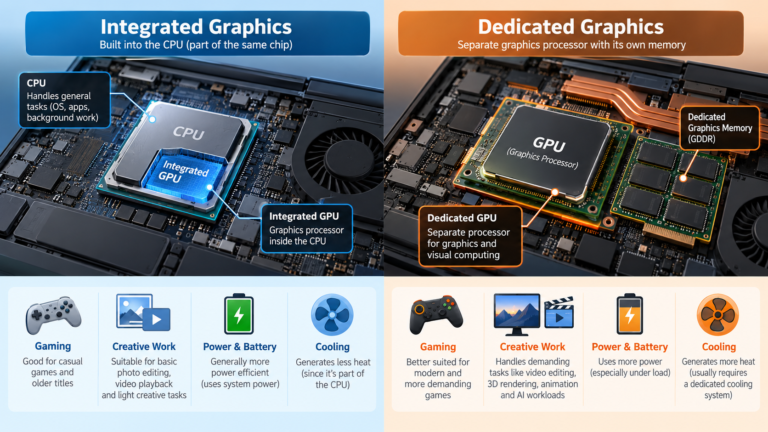
Integrated vs Dedicated Graphics: What’s the Difference?
Every laptop needs something to draw what you see on screen, from a spreadsheet to a video game. That job belongs to the graphics […]
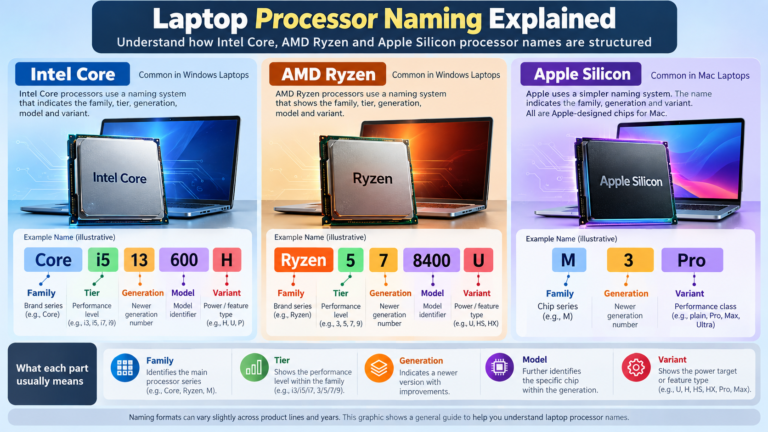
Laptop Processor Names Explained: Intel Core, Ryzen and Apple Silicon
You’re looking at a laptop listing that says “Intel Core Ultra 5 228V” or “AMD Ryzen AI 7 350” or “Apple M5 Pro”. What […]
Intel Core vs AMD Ryzen: Which Processor Is Right for You?
Shopping for a new laptop almost always comes down to one early decision: Intel or AMD? The processor badge on the lid feels like […]
Comments (0)