How to Choose a Laptop: A Complete Buying Guide
Buying a laptop can be surprisingly confusing. A product page may list a processor, RAM, SSD, graphics processor, display resolution, refresh rate, battery capacity […]
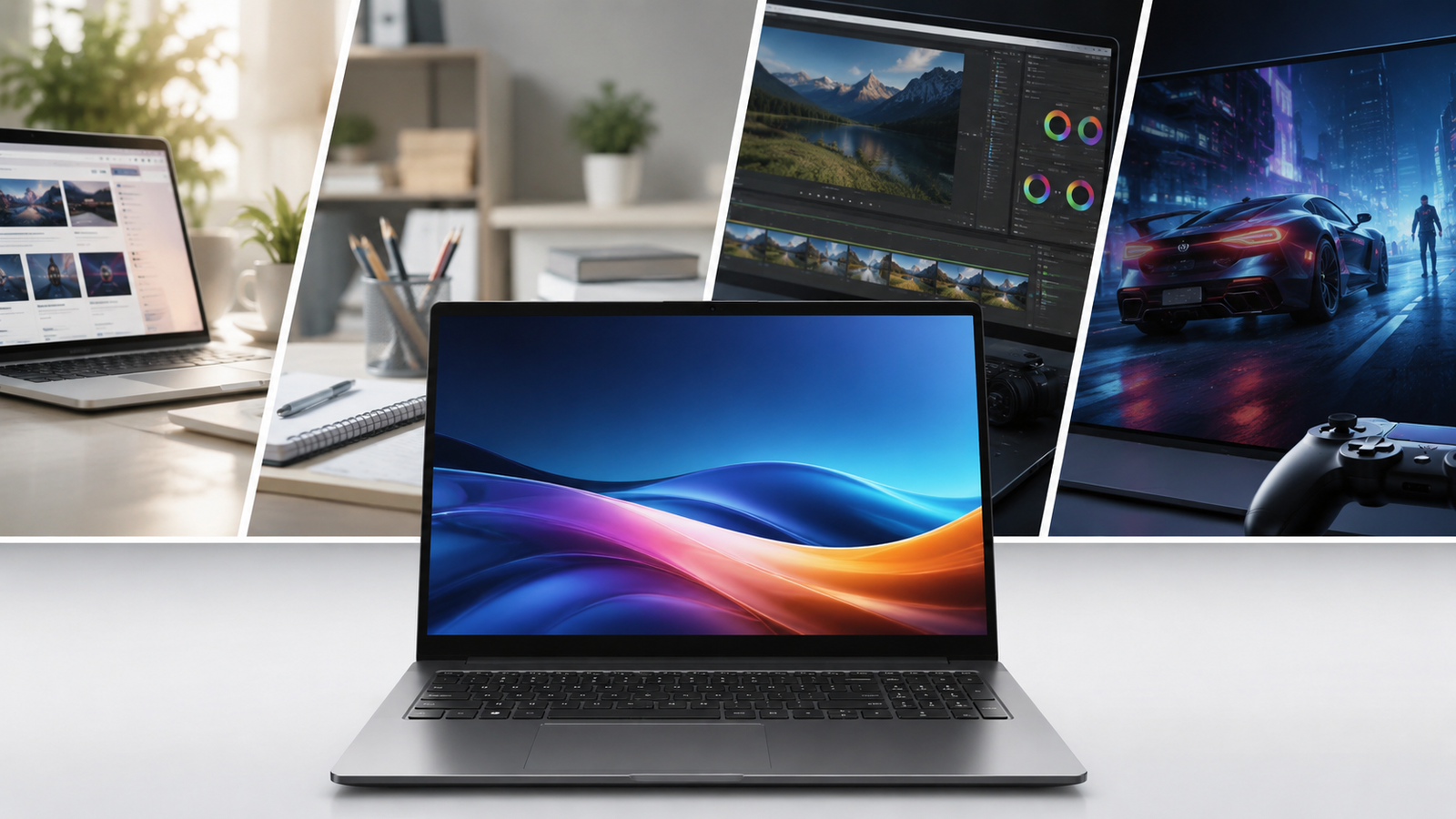
Buying a laptop can be surprisingly confusing. A product page may list a processor, RAM, SSD, graphics processor, display resolution, refresh rate, battery capacity and dozens of other specifications—but not all of them matter equally for every user.
The best way to choose a laptop is to start with what you need to do with it, then work backward to the hardware.
A student who mainly uses a browser, documents and video calls does not need the same laptop as someone editing 4K video, running engineering software or playing demanding games. Likewise, a powerful gaming laptop may be a poor choice for someone who prioritizes portability and long battery life.
Short answer: To choose the right laptop, identify your main workloads first, then prioritize the processor, RAM, storage, graphics, display, battery, ports and upgradeability that those workloads actually require. Avoid paying for specifications that will not improve the way you use the computer.
Start With What You Will Actually Do
Before comparing processor names or reading benchmark charts, answer a simpler question:
What will I use this laptop for most of the time?
Your answer should determine almost every other decision.
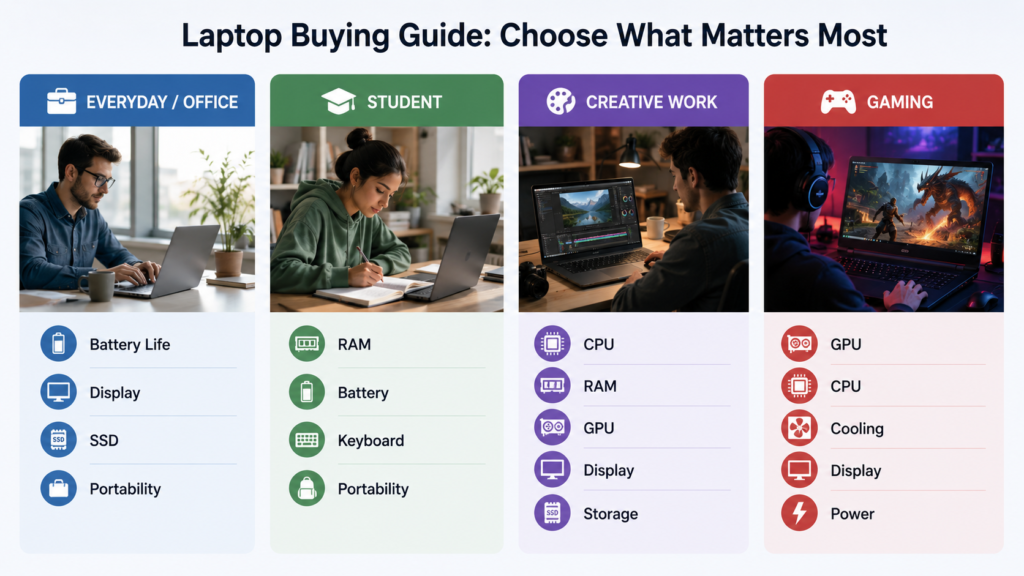
Basic everyday use
If your workload consists mainly of:
- Web browsing
- Microsoft Office or similar productivity applications
- Online meetings
- Streaming video
- Social media
- Basic personal tasks
you can focus more on a balanced, efficient laptop than on maximum processing power.
For this type of use, an SSD, sufficient RAM, a comfortable keyboard, a good display and reasonable battery life can matter more to your experience than having a high-end processor.
Study and office work
Students and office users may need:
- Multiple browser tabs
- Word processing
- Spreadsheets
- Presentations
- Video conferencing
- Cloud applications
- Programming or development tools
Here, memory capacity becomes increasingly important because multitasking can consume RAM quickly.
Photo and video editing
Creative workloads place greater demands on the system.
Depending on the software and projects involved, you may benefit from:
- A stronger CPU
- More RAM
- Faster and larger SSD storage
- A capable GPU
- A high-quality display
- Good colour reproduction
- Fast external connectivity
The exact requirements vary considerably between applications, so check the software developer’s requirements before buying.
Gaming
Gaming shifts the priority toward:
- Dedicated graphics performance
- CPU performance
- Cooling
- Display refresh rate
- Sufficient RAM
- Fast storage
- Appropriate power delivery
A laptop designed for demanding games will generally make different compromises from an ultraportable designed for mobility.
The Processor: Look Beyond the Name
The processor, or CPU, is one of the most important components in a laptop.
However, simply seeing a familiar processor brand or a high number in its name does not tell you everything about how a particular laptop will perform.
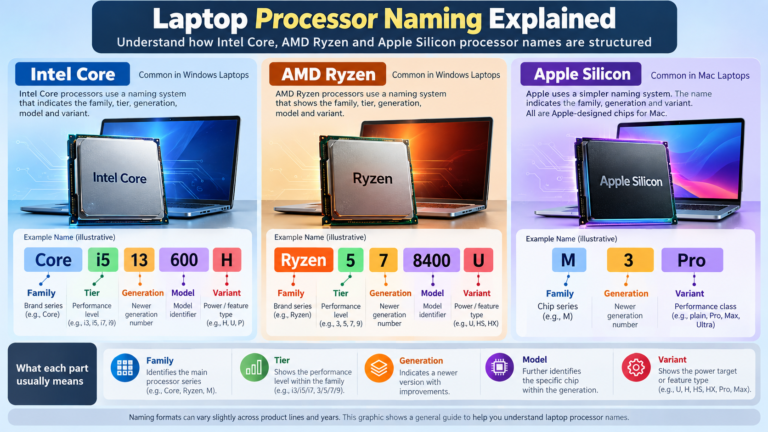
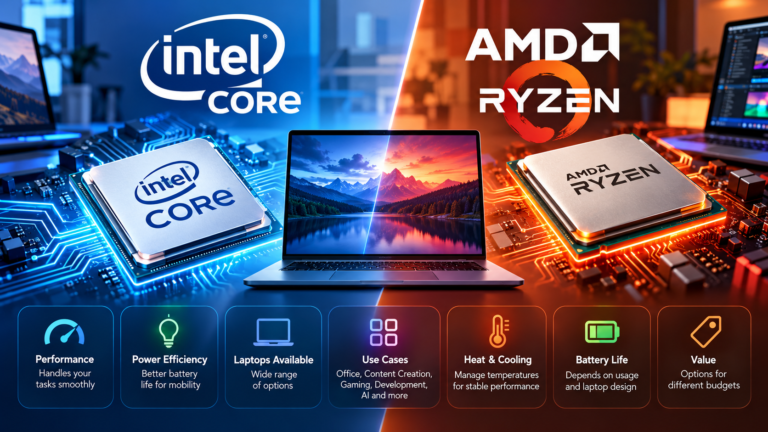
Intel, AMD and Apple use different processor architectures, naming systems and product families. Intel’s current laptop portfolio, for example, includes Core Ultra processors across different mobile segments, while AMD offers multiple Ryzen laptop families. Apple uses its own Apple silicon chips in Mac computers.
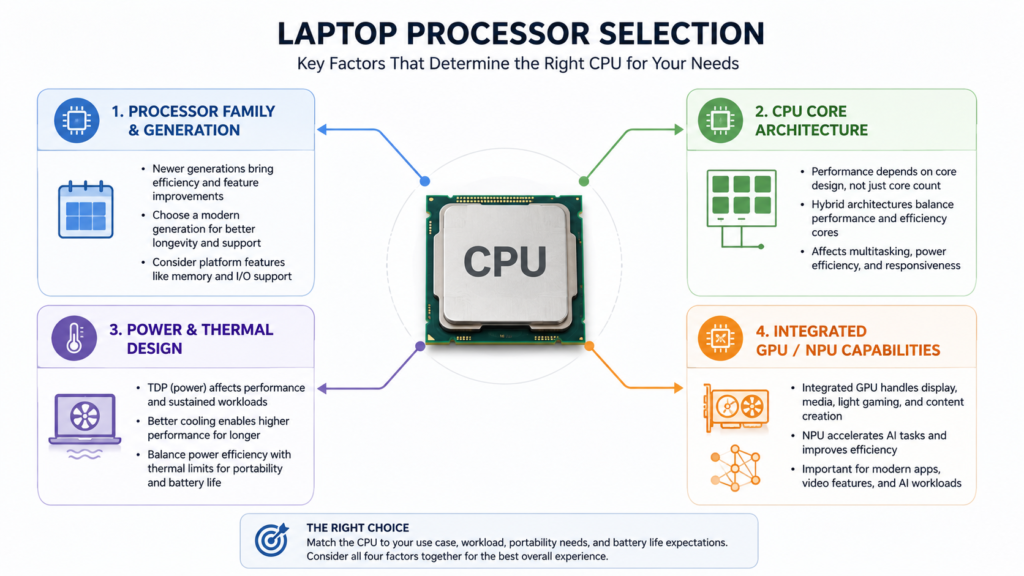
When comparing processors, pay attention to:
- Processor family and generation
- Number and type of CPU cores
- Power class or intended laptop segment
- Integrated graphics capability
- AI/NPU capabilities where relevant
- The actual laptop’s cooling and power configuration
Why processor names can be misleading
A processor with a higher tier name is not automatically the right choice.
Laptop processors are designed for different purposes. Some prioritize power efficiency and thin designs, while others are designed for higher sustained performance.
Intel, for example, identifies different mobile Core Ultra processors using suffixes such as U, H and V, with different processors aimed at different laptop designs and performance requirements.
This is why comparing only “Core 7 vs Core 5” or “Ryzen 7 vs Ryzen 5” is not enough.
For a deeper explanation of processor naming, see Laptop Processor Names Explained.
How Much RAM Do You Need?
RAM is the laptop’s working memory. It allows the operating system and applications to keep data readily available while you work.
More RAM does not automatically make every laptop faster, but insufficient RAM can become a major limitation when you multitask.
For example, a user running a browser with many tabs alongside office applications, communication software and other programs may benefit from more memory than someone performing only light tasks.
Microsoft lists 4 GB as the minimum RAM requirement for Windows 11, but a minimum operating-system requirement should not be confused with a sensible buying target for a new laptop. Microsoft itself recommends 8 GB to 16 GB or more for certain general computer experiences, while Copilot+ PCs require at least 16 GB of memory.
Think about RAM in terms of workload:
- Basic use: enough memory for browsing, documents and everyday applications
- Multitasking: additional memory becomes more valuable
- Creative/professional work: higher memory configurations can be useful depending on the application
- Virtual machines and demanding development: additional RAM can be particularly important
Also check whether the laptop’s RAM can be upgraded. Some thin laptops use memory that is integrated into the system and cannot be replaced later.
For a detailed explanation, see How Much RAM Do You Really Need in a Laptop?
Storage: SSD Capacity Matters More Than You Think
Modern laptops are generally much more practical with SSD storage than with older mechanical hard drives.
When choosing storage, consider two separate questions:
How fast does the storage need to be?
and
How much storage do I need?
An SSD can make everyday tasks such as booting the operating system, opening applications and accessing files feel responsive.
Capacity is a separate issue.
A laptop with insufficient storage can become inconvenient quickly if you store large photo libraries, videos, games, projects or development environments locally.
Microsoft’s laptop buying guidance lists storage configurations ranging from 256 GB through 1 TB or more depending on the user’s needs.
For many buyers, it is better to choose an adequate SSD capacity rather than buying a laptop with a faster processor while compromising heavily on storage.
See SSD vs HDD for a more detailed explanation of the differences between the two storage technologies.
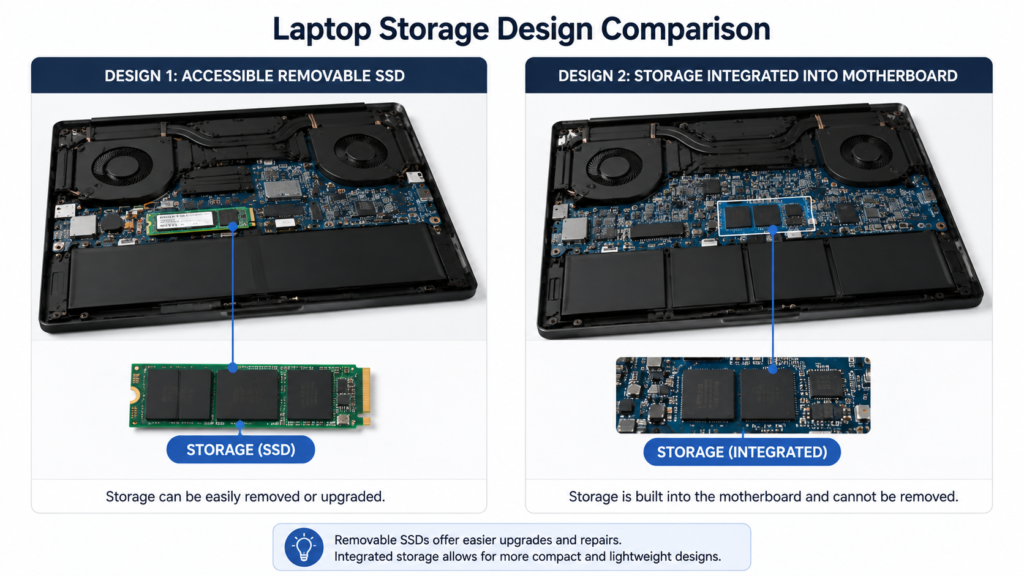
Check whether the storage can be upgraded
Do not assume that every laptop lets you replace or expand its SSD.
Before purchasing, check the manufacturer’s service documentation for:
- Whether an SSD slot is accessible
- Whether there is a second storage slot
- What SSD form factor is supported
- Whether replacing the drive affects warranty or service conditions
- Whether the storage is soldered or otherwise non-replaceable
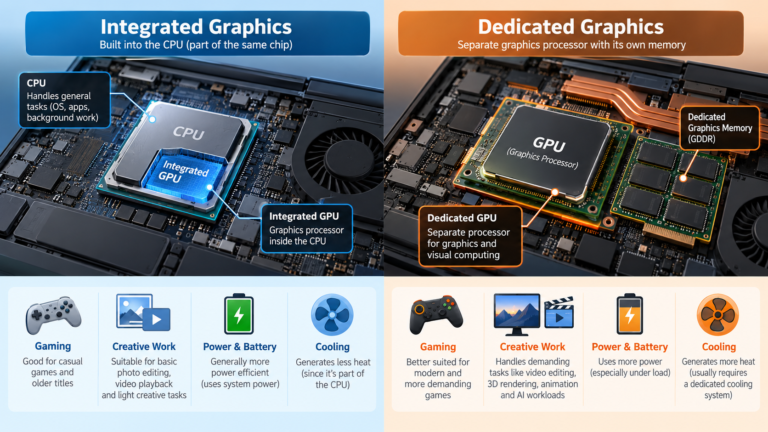
Integrated vs Dedicated Graphics
Graphics hardware determines how effectively a laptop handles visual workloads.
There are two broad categories to understand:
Integrated graphics
Integrated graphics are built into the processor or system architecture and generally share system resources in ways that differ from a separate graphics processor.
They can be suitable for:
- Web browsing
- Office applications
- Video playback
- General productivity
- Some creative workloads
- Some games, depending on the hardware and settings
Modern integrated graphics can be considerably more capable than older laptop graphics solutions.
Dedicated graphics
A dedicated GPU is a separate graphics processor designed for higher graphics workloads.
It is particularly relevant for:
- Gaming
- 3D rendering
- GPU-accelerated creative applications
- Certain engineering and scientific applications
- Some local AI workloads
But a dedicated GPU can also increase power consumption, heat output, system weight and cost.
Do not buy a dedicated GPU simply because it appears more powerful on a specification sheet. Buy one when your software or workload benefits from it.
See Integrated vs Dedicated Graphics for a deeper explanation.
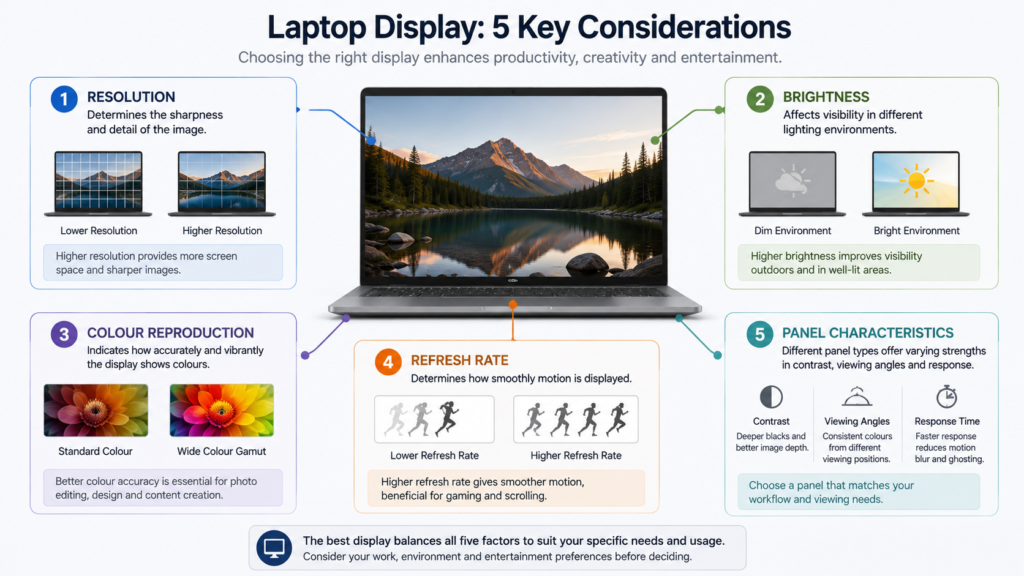
The Display Is Part of the Laptop You Use Every Day
A powerful laptop with a poor display can still be frustrating to use.
When evaluating a screen, look beyond resolution.
Consider:
- Screen size
- Resolution
- Panel technology
- Brightness
- Colour coverage and accuracy
- Refresh rate
- Viewing angles
- Surface finish
- Aspect ratio
Resolution
Common display descriptions include Full HD, QHD and 4K, but higher resolution is not automatically better.
Higher resolution can improve image sharpness, but it can also affect power consumption and graphics requirements.
The right resolution depends on screen size, viewing distance and workload.
Brightness
Brightness matters if you frequently work in bright rooms or near windows.
A screen that looks acceptable in a dark room may be less comfortable in strong ambient light.
Refresh rate
Refresh rate describes how frequently the display can update its image.
Higher refresh rates can make motion appear smoother and are particularly relevant to gaming.
For office work, browsing and document editing, refresh rate may be less important than display quality, brightness and ergonomics.
Colour
If you edit photographs, video or graphics, colour reproduction becomes much more important.
Do not assume that a display with a high resolution automatically has excellent colour accuracy.
Battery Life: Don’t Trust One Number Blindly
Battery life is one of the most frequently misunderstood laptop specifications.
Manufacturers may quote battery-life figures obtained using particular test conditions. Actual runtime can vary depending on:
- Screen brightness
- Applications
- Processor workload
- Graphics usage
- Network activity
- Power settings
- Battery condition
- Operating system
- Display technology
For example, Apple publishes separate battery estimates for activities such as video streaming and wireless web use on its MacBook Air specifications, illustrating why battery-life numbers should be interpreted in context rather than treated as a universal runtime figure.
If portability is important, look at more than the battery rating.
Consider the complete design:
Battery + processor efficiency + display + system power management + workload
A large battery does not guarantee excellent battery life if the rest of the system consumes substantial power.
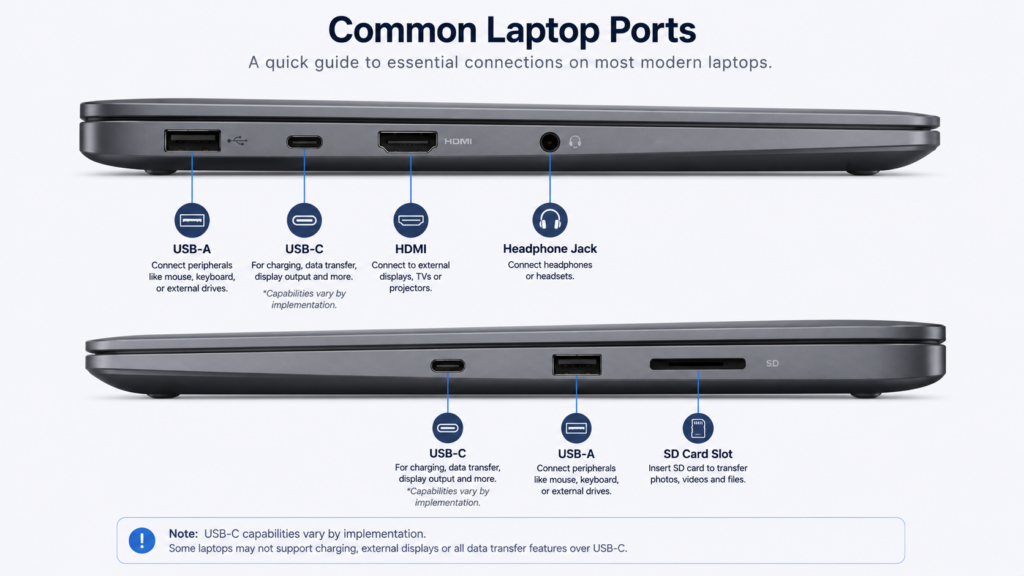
Ports and Connectivity Can Affect Your Buying Decision
A laptop may look excellent on paper and still be inconvenient if it does not have the ports you need.
Check for:
- USB-A
- USB-C
- HDMI
- Headphone jack
- SD or microSD card reader
- Ethernet
- Display output
- Charging support
- Thunderbolt or other high-speed interfaces where required
USB-C is particularly important because the connector itself does not tell you everything about its capabilities.
A USB-C port may support different combinations of charging, data and display functionality depending on the implementation.
Apple’s current MacBook Air specifications, for example, identify its USB-C/Thunderbolt ports as supporting charging, DisplayPort, Thunderbolt 4 and USB4.
Therefore, check the actual port specification of the laptop, not simply whether the product has “USB-C.”
Keyboard, Trackpad and Build Quality Matter
Specifications do not tell you everything about a laptop.
You interact physically with the:
- Keyboard
- Trackpad
- Screen hinge
- Palm rest
- Chassis
- Webcam
- Speakers
every day.
If possible, try the keyboard before buying, particularly if you type for several hours each day.
Also consider:
- Key travel and layout
- Dedicated navigation keys
- Trackpad size
- Hinge stability
- Chassis rigidity
- Webcam placement
- Speaker quality
- Weight
- Charger size
For a frequently carried laptop, saving several hundred grams may matter more than buying a processor one tier higher.
Size and Weight: Choose for Your Lifestyle
Laptop size is usually a trade-off.
Smaller laptops
Advantages:
- Easier to carry
- Often better suited to travel
- Can consume less power depending on configuration
Potential limitations:
- Smaller display
- Fewer ports
- Less room for cooling
- Potentially fewer upgrade options
Larger laptops
Advantages:
- Larger display
- More physical space for cooling
- More room for ports
- Potentially stronger hardware configurations
Potential limitations:
- More weight
- Larger charger
- Less convenient for frequent travel
Think about where you will actually use the laptop.
A 16-inch performance laptop may be excellent at a desk but inconvenient if you carry it across a campus every day.
Operating System and Software Compatibility
Your choice of operating system can be just as important as the hardware.
Windows laptops provide broad compatibility with PC software and hardware.
Mac laptops use Apple’s macOS and Apple silicon platform. Current MacBook Air models, for example, use Apple silicon and unified memory, and their specifications should be checked against the requirements of the software you intend to use.
Before choosing an operating system, check:
- Required applications
- Professional software compatibility
- Driver requirements
- Peripheral compatibility
- Gaming requirements
- Development tools
- Corporate or educational requirements
Do not assume that an application available on one platform will behave identically on another.
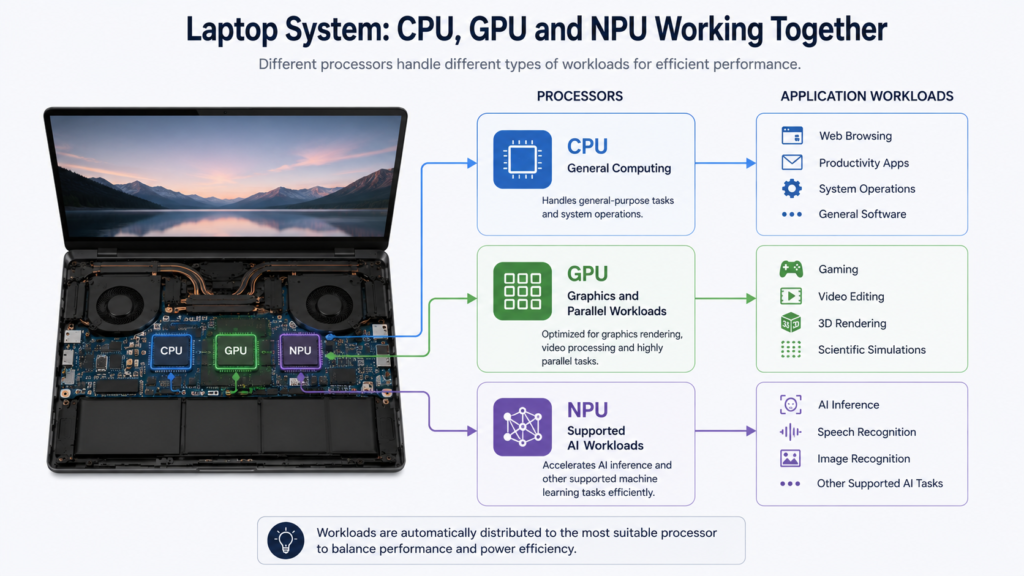
AI PCs and NPUs: Do You Need One?
Newer laptops may include a dedicated Neural Processing Unit, or NPU.
An NPU is designed to accelerate certain AI and machine-learning workloads efficiently.
Microsoft defines Copilot+ PCs as a class of Windows 11 computers with an NPU capable of more than 40 trillion operations per second, alongside minimum memory and storage requirements.
Intel and AMD also offer laptop processors with dedicated AI acceleration capabilities.
But the presence of an NPU does not automatically make a laptop better for every buyer.
Ask:
- Do the applications I use take advantage of the NPU?
- Do I specifically need on-device AI features?
- Will the workload benefit from CPU or GPU acceleration instead?
- Is the AI hardware requirement important to my expected software?
For ordinary browsing and office work, an NPU may not be a deciding factor.
For users interested in local AI features and compatible applications, it can become more relevant.
Check Upgradeability Before You Buy
One of the easiest mistakes is assuming a laptop can be upgraded later.
Check whether these components are replaceable or expandable:
- RAM
- SSD
- Wi-Fi module
- Battery
Some laptops provide access to upgradeable components, while others integrate components directly into the motherboard.
If you expect to keep the laptop for many years, upgradeability can be more valuable than a small performance advantage at the time of purchase.
Common Laptop Buying Mistakes
Buying based only on processor branding
A processor name does not describe the entire laptop.
Cooling, power configuration, memory, graphics and storage all matter.
Buying too little RAM
Choosing the minimum memory configuration may save money initially but can become restrictive as multitasking demands increase.
Paying for a dedicated GPU you won’t use
A dedicated GPU can add cost, weight and power consumption. If you never use GPU-intensive applications or games, it may not be worthwhile.
Choosing resolution over overall display quality
A high-resolution panel is not automatically the best panel.
Brightness, colour, viewing characteristics and refresh rate can matter more depending on the workload.
Ignoring ports
If you regularly use HDMI, SD cards, USB-A devices or external displays, check the physical connectivity before purchasing.
Ignoring repairability and upgradeability
A laptop that cannot be upgraded may need to be replaced sooner if your workload grows.
Assuming advertised battery life equals real-world battery life
Battery estimates are based on specific test conditions. Your workload will determine actual runtime.
Buying more performance than you need
A high-end laptop can be excellent, but unused performance is not necessarily good value.
Who Should Buy What?
Rather than dividing laptops into rigid price categories, match the configuration to the workload.
For students
Prioritize:
- Good battery life
- Comfortable keyboard
- Moderate weight
- Reliable Wi-Fi
- Adequate RAM
- SSD storage
- Good webcam
- Durable construction
For office and business users
Prioritize:
- Keyboard and trackpad
- Display quality
- Battery life
- Port selection
- Reliability
- Security features
- Manageability where relevant
- Comfortable weight
For programmers and developers
Consider:
- Strong CPU
- Sufficient RAM
- Fast SSD
- Good keyboard
- External-display support
- Port selection
- Operating-system compatibility
- Virtualization requirements if applicable
For photographers and video editors
Consider:
- Strong CPU
- More RAM
- Fast and sufficiently large SSD
- Capable GPU where software benefits from it
- High-quality display
- Good colour reproduction
- Fast external storage connectivity
For gamers
Prioritize:
- GPU performance
- CPU performance
- Cooling
- Display refresh rate
- RAM
- SSD capacity
- Power delivery
Also check the requirements of the games you actually intend to play rather than assuming that a particular GPU label guarantees a particular frame rate.
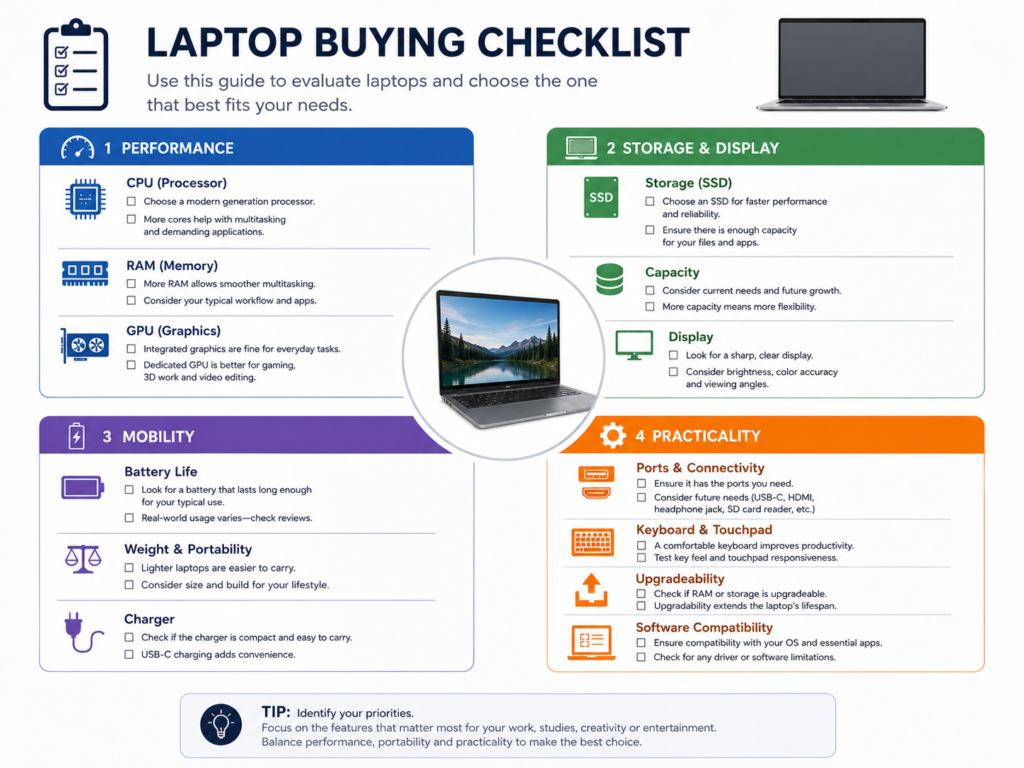
A Simple Laptop Buying Checklist
Before purchasing, work through this checklist:
1. Workload
What will you actually do with the laptop?
2. Operating system
Are all your essential applications compatible?
3. Processor
Is the CPU appropriate for your workload rather than simply being a higher-tier name?
4. RAM
Is there enough memory for your multitasking and applications?
5. Storage
Is the SSD large enough, and can it be upgraded?
6. Graphics
Do you need integrated graphics or a dedicated GPU?
7. Display
Check resolution, brightness, colour, refresh rate and panel characteristics.
8. Battery
Look beyond the manufacturer’s headline battery figure.
9. Ports
Make sure the laptop has the connections you actually use.
10. Keyboard and trackpad
These directly affect everyday usability.
11. Size and weight
Choose based on how often you will carry it.
12. Upgradeability
Check whether RAM, storage and other components can be replaced.
13. Software compatibility
Confirm that your important applications and peripherals work with the platform.
14. Long-term value
Think about whether the configuration will still meet your needs as your workload grows.
The Best Laptop Is the One That Fits Your Workload
There is no single laptop that is best for everyone.
A lightweight laptop with excellent battery life may be ideal for a student or frequent traveler but unsuitable for someone rendering 3D projects. A powerful gaming laptop may deliver much more performance than an office user needs while being heavier and less convenient to carry.
The most sensible laptop buying strategy is therefore to identify your workload first and then spend your budget on the specifications that directly improve that workload.
Prioritize the components that are difficult or impossible to upgrade later, pay attention to the display and keyboard you will interact with every day, and verify software compatibility before purchasing.
The goal is not to buy the laptop with the biggest specification sheet.
It is to buy the laptop that gives you the right combination of performance, portability, usability, battery life and longevity for the way you actually work.
Frequently Asked Questions
How do I choose a laptop for everyday use?
Start with a balanced configuration rather than maximum performance. Pay particular attention to RAM, SSD storage, display quality, battery life, keyboard comfort and portability.
Is RAM or processor more important in a laptop?
It depends on the workload. The processor affects computing performance, while RAM determines how comfortably the system can handle multiple applications and large working datasets. A balanced configuration is usually preferable to maximizing one component while neglecting the other.
How much RAM should a laptop have?
The answer depends on the workload. Windows 11 has a much lower minimum requirement than what many users would reasonably want in a new laptop. Microsoft currently specifies 4 GB as the Windows 11 minimum and 16 GB as the minimum memory requirement for Copilot+ PCs.
Do I need a dedicated graphics card?
Not necessarily. Integrated graphics can be sufficient for many everyday tasks. A dedicated GPU becomes more important for demanding gaming, 3D work and applications that benefit substantially from GPU acceleration.
Is an SSD important in a laptop?
Yes. SSD storage generally provides much faster access to data than traditional mechanical hard drives and is now a fundamental part of a responsive modern laptop. Capacity should also be considered because large applications and files can consume storage quickly.
Is a higher-resolution laptop display always better?
No. Resolution is only one part of display quality. Brightness, colour reproduction, panel characteristics, refresh rate and viewing conditions can all affect the experience.
Should I buy a laptop with an NPU?
Only if the supported AI workloads and features are relevant to you. NPUs are designed for specific AI workloads and do not replace the CPU or GPU for every task. Microsoft currently requires a 40+ TOPS NPU for systems classified as Copilot+ PCs.
Should I prioritize upgradeability?
If you plan to keep the laptop for several years, upgradeability can be valuable. Check specifically whether RAM and SSD storage can be replaced or expanded before purchasing.
Conclusion
Choosing a laptop becomes much easier when you stop comparing specifications in isolation.
Start with your workload. Then choose the processor, RAM, storage, graphics, display and battery characteristics that support it. After that, check the practical details—ports, keyboard, weight, operating system compatibility and upgradeability.
A good laptop buying decision is not about maximizing every specification. It is about finding the configuration that provides enough performance for your current needs without paying for capabilities you are unlikely to use.
If you are unsure between two models, compare them component by component against your actual workload rather than choosing solely by processor name, RAM capacity or advertised battery life.

Swathi is a contributor at GizStreet with a master’s degree in science and a strong background in technical writing and product review. She covers gadgets, software, and consumer tech, with a focus on breaking down complex products into clear, practical takeaways for readers.
Related Articles
Integrated vs Dedicated Graphics: What’s the Difference?
Every laptop needs something to draw what you see on screen, from a spreadsheet to a video game. That job belongs to the graphics […]
Laptop Processor Names Explained: Intel Core, Ryzen and Apple Silicon
You’re looking at a laptop listing that says “Intel Core Ultra 5 228V” or “AMD Ryzen AI 7 350” or “Apple M5 Pro”. What […]
Intel Core vs AMD Ryzen: Which Processor Is Right for You?
Shopping for a new laptop almost always comes down to one early decision: Intel or AMD? The processor badge on the lid feels like […]
This was beautiful Admin. Thank you for your reflections.
This was beautiful Admin. Thank you for your reflections.